
 From: AutoCAD Productivity Articles #104
Originally published: August 2011
Layer Walk: the 'Hold Selection' Feature
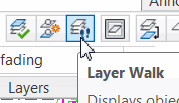 Layer Walk [Home tab
 expanded Layers panel] is one of my favorites and one that I promote in virtually all my training sessions.
When using Layer Walk, you can select more than one layer using the Ctrl key for random selections, the Shift key for a range, or you can simply click and drag your cursor across the layers you want to select.
But if you have a long list of layers, it's easy to forget the layers you may have selected already, so use Hold Selection!
How to a Use the 'Hold Selection' Feature in Layer Walk
Open the drawing db_samp.DWG [C:\Program Files\Autodesk\AutoCAD 20xx\Sample\Database Connectivity]
Launch Layer Walk. The layers that are not highlighted (white) are either Off or Frozen.
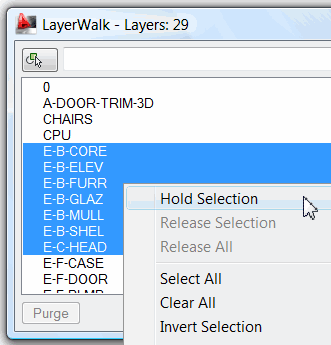
Make the dialog box as shallow as possible, then select the layers shown in the figure.
After selecting the layers, right-click, then click Hold Selection. An asterisk will appear beside the selected layers.
Scroll down and select the layers named GRIDLN and GRID-08. To view the content of both layers, you will need to use Ctrl… which brings us to the point.
When selecting those two additional layers, the original selection set is still displayed. Had you not used the Hold Selection feature, only the GRIDxx layers would be displayed.
Hold the GRIDxx layers, then turn on E-F-STAIR and E-F-COLUMN.
Before you click OK, be sure to clear the checkbox for Restore on Exit.
Hopefully you see where Hold Selection can give you a bit more control over layer visibility and selection when using Layer Walk!
See all the articles published in August 2011
See this article in the August 2011 Corner
Donate to CADTutor
If you found this article useful, you might like to consider making a donation. All content on this site is provided free of charge and we hope to keep it that way. However, running a site like CADTutor does cost money and you can help to improve the service and to guarantee its future by donating a small amount. We guess that you probably wouldn't miss $5.00 but it would make all the difference to us.
Note from Michael: I want to thank all of my customers for continuing to retain my training services (some for over three decades!) and let you know your donations do not go to me personally, but to the ongoing maintenance of the CADTutor ship as a whole and to support the yeoman efforts of my friend and CADTutor captain, David Watson, to whom I am grateful for this monthly opportunity to share a few AutoCAD insights.


