Leaderboard



.thumb.jpg.615654602253be56b2fbd5d064834780.jpg)
Popular Content
Showing content with the highest reputation on 08/06/2026 in Posts
-
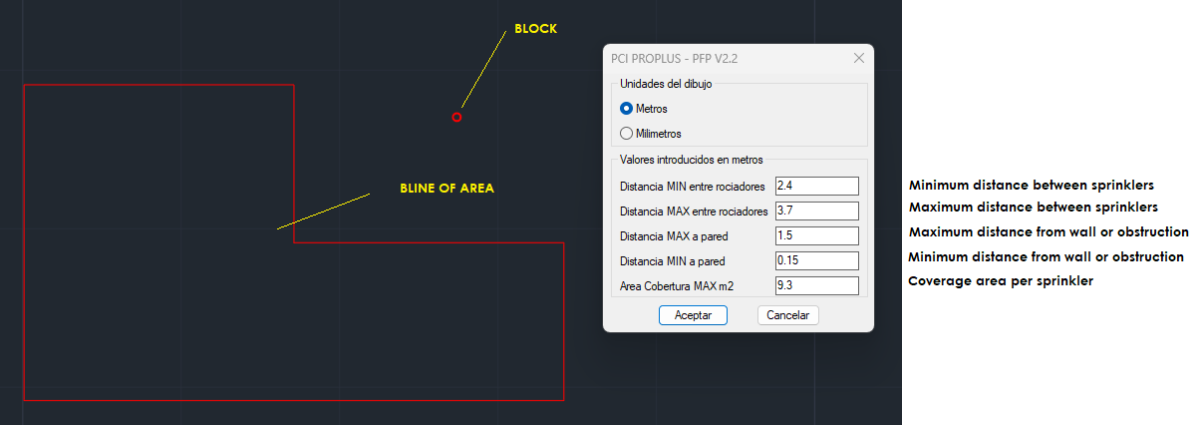
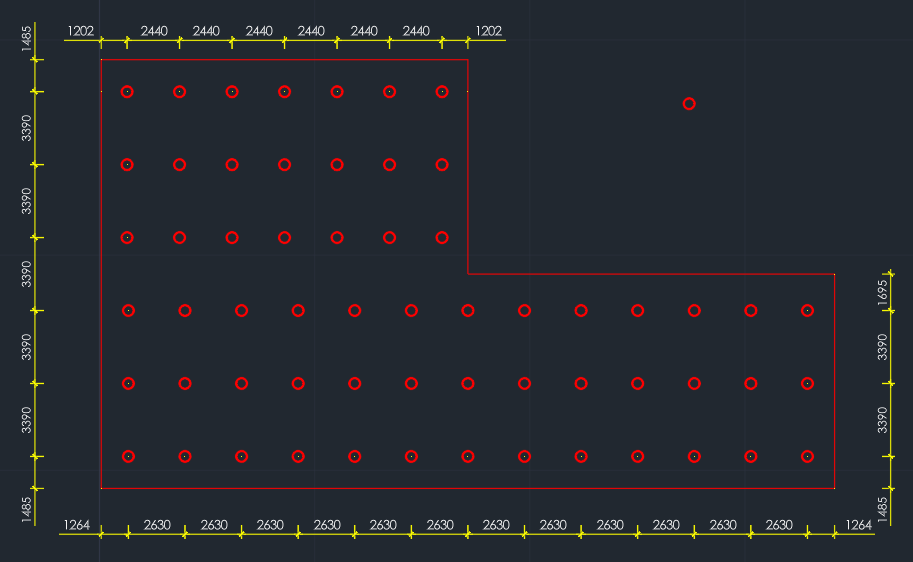
Hello. I'm happy to share this routine I created with the help of Copilot, which I believe works acceptably for distributing elements (sprinklers, detectors, etc.) based on user input. I would be very grateful if any member of this forum could improve the code or offer any advice. I'm a big fan of @Lee Mac's programs, whom I consider a master. The routine will ask the user to define the measurements that define minimum and maximum values and then, by selecting a block, from which it acquires the layer and scale properties, by selecting an area, with or without "islands", it will generate a mesh pattern, which for a preliminary design is acceptable or approximate in many cases. I am Spanish and the routine is coded in Castilian Spanish (Spain). PCI_PRO (PFP).lsp
 1 point
 -
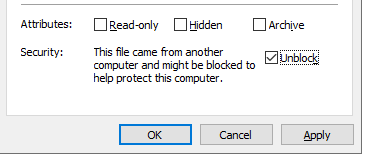
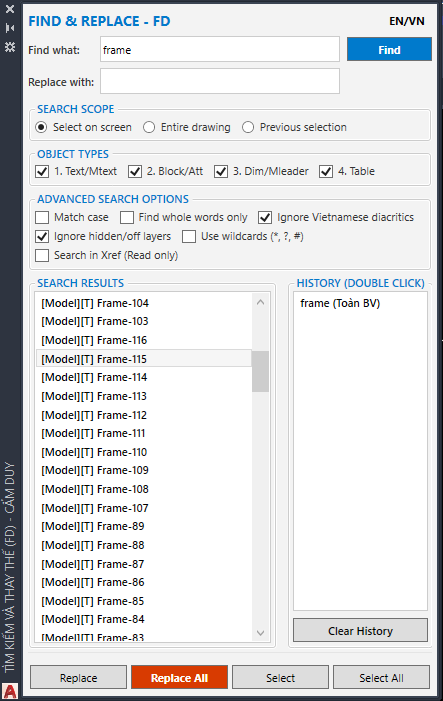
Using AutoCAD's default Find & Replace command often causes the program to freeze or lag for a while when opening or closing the search dialog—especially with large drawings. I'm sharing a lightweight and fast Find & Replace LISP that helps reduce lag and waiting time compared to AutoCAD's built-in Find & Replace command. 2026/07/18 – Version V2 Added a new feature: run the FD command again to toggle the Find panel on/off. Command Name: FDP (FD) +Automatic Installation (Load Once Only) Step 1: Extract FD.zip. Step 2: Run setup.bat to install the files to drive C:. Step 3: Open APPLOAD (AP) and browse to: C:\FD Step 4: Load the file Load_FD.lsp. (Optional) Add it to the Startup Suite so it loads automatically whenever AutoCAD starts. +Manual Installation (Must Be Loaded Every Session) Load FD.vlx using APPLOAD (AP). Load the DLL using the NETLOAD command. Be sure to read the notes below to avoid loading the wrong DLL. !!_!! Important AutoCAD 2018 – Early 2024: Use FD_Palette_v15.dll. Late AutoCAD 2024 – 2025 / 2026 / 2027: Use FD_Palette_v16.dll. If Windows Blocks the DLL Windows may block downloaded DLL files, which can cause loading errors. To fix this: Right-click the .dll file. Open Properties. Check Unblock (if available). Click OK, then load the DLL again. Link: https://www.cadviet.com/forum/index.php?app=forums&module=forums&controller=topic&id=213381&app=forums&module=forums&id=213381
1 point
-
A couple of comments, making a table is much easier than rows and columns of *text, one advantage is read all the string number of characters so set correct column width to max STRLEN. Part 2 is have Table to Excel program or just write direct to Excel. You provided a sample dwg but "I need an AutoLISP routine for Advance Steel 2023." so what are you trying to read from AS ? That makes more sense, export the desired answer without a intermediatory step. There is some code out there about reading AS object properties.1 point
-
If you're looking for a faster alternative to AutoCAD's FIND command, an AutoLISP routine that processes TEXT, MTEXT, ATTRIB, and even block attributes directly through code can be much quicker, especially in large drawings. The slowdown in the built-in command often comes from its interface and broader search options. A LISP can be customized to search only the objects you need, making batch replacements much faster. Just remember to back up the drawing before running global replacements.1 point
-
Very professional requirements, especially when dealing with large multi-image sets, where it is necessary to quickly locate a known text or object, sometimes having to go through all the drawings. In fact, you can try VC distribution. It can mount DLL and make two bundles for different versions(like VLX+DLLV1=Budl1, VLX+DLLV2=Budl2). The user can pull the collection to achieve configuration-free.1 point