All Activity
- Past hour
-

copy viewport and content...is it possible?
BIGAL replied to leonucadom's topic in AutoLISP, Visual LISP & DCL
Did you google found lots of ideas.- 1 reply
-
- 1
-

-
hello : I'm wondering if this command can be used from lsp, as I'd like to interact with it. for example by giving the default size and position of the break symbol Any information you have is welcome. thanks
-
Top 20 AutoCAD Customizations – Part One: Tuesday Tips With Frank
BIGAL replied to The AutoCAD Blog's topic in AutoCAD Blogs
Re item 9, I used CIV3D so rather than swapping workspaces made a pop menu with a few of the CIV3D commands that we used often. The menu was saved into the drafting workspace. If you can use notepad you can make a new menu. Just open the CUI and copy the relevant commands to your notepad. If want more details just ask. Just a PS every user had their own workspace saved as their name, to avoid any corruption of the default workspaces. -
Dynamic Blocks corrupted after a while of usage in ZWCAD
BIGAL replied to cad_tutee's topic in AutoCAD Drawing Management & Output
For me I generally write a custom data extract using lisp. That can include mleaders with text or a block with attributes have you thought about going that way ? What object and properties are you extracting and where does it end up Excel etc. -

copy viewport and content...is it possible?
leonucadom posted a topic in AutoLISP, Visual LISP & DCL
hello: I'm still wondering if this is possible, selecting a viewport in paperspace and that the content of the selected viewport is selected and all of this is saved to the clipboard and then you can copy it to another dwg in a single move. anyone who knows something about this thanks - Today
-
THANK YOU SO MUCH, I DIDN'T KNOW I HAD IT
-
In this link, it's written that OOPS command exist : In AutoCAD since version ≤ R12...
-
hello: I've heard about the command OOPS Unfortunately, the AutoCAD I use at work is version 2013 Does anyone know if there is an LSP routine command for that? IT WOULD BE GREAT TO INCORPORATE IT Any advice is welcome. thanks
-

Top 20 AutoCAD Customizations – Part One: Tuesday Tips With Frank
The AutoCAD Blog posted a topic in AutoCAD Blogs
There are times when I discuss customizing AutoCAD, and I often receive a response similar to: “Oh, but I’m not a programmer.” No, no, no, you don’t have to be a programmer to set up AutoCAD to fit your workflow better, or in some cases, improve it. With that said, I present to you my list of top AutoCAD customizations for non-programmers. In this two-part series, the first 10 are included today. In no particular order, let’s kick it off. 1. Quick Access Toolbar Keep your most frequently used tools in the Quick Access Toolbar (QAT) at the top of your screen. Customize the QAT by clicking the small, pull-down control button on the right. You can check and un-check the commands you want quick access to. For a fast way to add a Ribbon command to the QAT, right-click any command icon on the Ribbon, and then select Add to Quick Access Toolbar from the pop-up menu. Similarly, right-click on any Quick Access Toolbar item to remove it. 2. Clean Screen Need to max out your screen space? CTRL-0 is your friend. The Ribbon and Palettes will be hidden, and AutoCAD will maximize to fill the entire screen. The QAT will remain on, so make note of the previous tip. CTRL-0 again to toggle it back. Of course, you can use the icon on the status bar as well. 3. Anchor Palettes AutoCAD’s many palettes are wonderful productivity enhancers, but not so great when they get in your way. Keep your favorites available with a simple mouse rollover by anchoring some left and some right. They take up almost no space when anchored, so you can still access their functionality while keeping your drawing editor clean and visible. 4. Right-Click Delay Do you still use your mouse right-click as Enter? If you’re not using the contextual pop-up menus when you right-click, you’re missing out on one of my favorite productivity enhancements. If you just can’t give it up, you can still have the best of both worlds by utilizing the time-sensitive right-click feature. You’ll find its control in the Options dialog, and when enabled, right-click will still function as you prefer, but now, by holding down the mouse button just a little longer, you’ll get the contextual pop-up menu instead. 5. Command Alias An AutoCAD command alias is a shortened name or abbreviation of a command name. Don’t like a default alias name? Change it! It’s easy. For example, a lot of people prefer C to be Copy instead of Circle. Does one of your often-used commands not have an alias? Add it yourself. Aliases live in a file called acad.pgp. And here’s the thing – it’s your .pgp file, not anyone else’s, so you can define them as you please. I’m a firm believer that using aliases and keyboard shortcuts, in conjunction with not taking your eyes off your work, is the best way to increase your speed and efficiency. Personally, I like to keep my most-used aliases mapped to the left side of the keyboard. That way, I don’t have to take my hand off the mouse or my eyes off my work to find a letter on the right side of the keyboard. 6. Places Stop wasting time by continually navigating multiple levels of folders in the File Open dialog box. Once you get to your folder, add it as a new entry in the Places pane of the Open dialog. Click on “Tools” in the upper-right corner, then select “Add Current Folder to Places.” A new icon will appear with the name of the folder. Now you can click on your new Place to jump right to that folder. If you find that you have multiple icons with the same name – “CAD,” for instance – just right-click on the icon, select Properties, and change the name to something that makes more sense, such as the project name. 7. Ribbon States The Ribbon doesn’t have to take up so much real estate. You can minimize it down to either panel buttons, panel tabs, or just titles. Decreasing the Ribbon’s footprint doesn’t affect its functionality, and it may just improve yours. 8. Floating Editor Have you ever had to work on one drawing while referencing another? You might want to take advantage of pulling your file tab off of the application, and to another location (such as another monitor). Don’t worry about losing any functionality either. The floating window has its own Command Line, and you can still use the Ribbon and Quick Access Toolbar from the main application while in your active floating window. When you’re done, use the title bar to drag it back to the file tabs area, or if you prefer, you can right-click the title bar, where you’ll find commands to either move it back. 9. Multiple Workspaces Do you work in multiple ways in AutoCAD? One day, you’re doing schematic drawings, such as wiring diagrams, and the next, you’re laying out 3D piping. Set up a separate workspace for your various workflows, containing the tools and palettes you need for the job. 10. Command Line Options AutoCAD’s Command Line is no longer just a utilitarian device to input commands. Now, it’s a multi-functional digital assistant that you can customize to match your preferences. Click on the wrench icon, and you can find tools to change your input settings, prompt history, and search options. It’s all just a wrench-click away! What’s Next? Stay tuned for the next installment to learn more AutoCAD customizations! More Tuesday Tips Check out our whole Tuesday Tips series for ideas on how to make AutoCAD work for you. The post Top 20 AutoCAD Customizations – Part One: Tuesday Tips With Frank appeared first on AutoCAD Blog. View the full article -

Civil Drafting with AutoCAD Project-Civil Drafting with AutoCAD Project
ReMark replied to nelsonm's topic in Student Project Questions
Your points will fall on the grid lines not inside the boxes created by the grid lines. -

Dynamic Blocks corrupted after a while of usage in ZWCAD
cad_tutee posted a topic in AutoCAD Drawing Management & Output
For context, I am using ZWCAD 2024 currently and I've created a dynamic block to be used in ZWCAD as an alternative to Multi-leaders to be an easier method to be able to DATAEXTRACT because my ZWCAD does not allow data extraction of MTEXT and MLEADERS unlike AutoCAD. I'd made the Dynamic Block to work exactly like a multileader would using, along with other parameters, Multiple Lookup Tables for rotating, extending and flipping the leader without affecting the order of text. That means they had to be created in licensed AutoCAD because ZWCAD's counterpart Flexiblocks do not have the LookUp parameter yet. The blocks worked normally as intended for a while on regular usage(working on, closing and reopening the file multiple times), but they stopped behaving like a dynamic block altogether suddenly after a few days on reopening the file. The blocks now seem to have been assigned different names by the software (*U15, *U16, and so) from its original name(m-Drawing M-Leader Block). I have attached the files below: Issue.dwg - File with the problematic Dynamic Blocks MultileaderDynamicBlock.dwg - File with the original Dynamic Block I have noticed this behavior with some other dynamic blocks in the files that I receive from consultants once in a while. Is this because of using dynamic blocks created in AutoCAD in ZWCAD? If yeah, why do they work perfectly for a while only to stop working all of a sudden? Is there a way to reverse this? I'd tried to replace the corrupted blocks with the original dynamic block reference, which would have itself been sort of a tedious task as there were so many instances in the drawing, but ZWCAD no longer recognizes the corrupted blocks as "blocks". ChatGPT and other LLMs are of limited help, so please help a brother understand and, if possible maybe, correct this issue. Or is there an alternative to this? Cheers! Issue.dwg MulltileaderDynamicBlock.dwg -
cad_tutee joined the community
-
 Zar joined the community
 - Yesterday
-
Oh that's cool, thanks for that lrm that will save quite a few steps in my process! Thanks again
-
Bit odd yes tested in Bricscad, I will look at the getcellextents, this gives the XY position of the corners of the table cell. If the line is 69 times repeated it sounds like that is the problem. I will make a little test program so can look at what is going on when calculating the Pt1 and Pt2. the code is done that way so if row height is changed for other users the lines are still central in the cell. Add the (princ line and look at the Y value displayed, it should change for every row. Please let me know if it is not changing. (setq pt2 (list (nth 6 pts)(nth 7 pts) 0.0)) (princ (strcat "\n" (rtos (cadr pt1) 2 3) " ")) (setq vdist (/ (- (cadr pt1) (cadr pt2)) 2.0)) Another test could some one try on Acad. 0 is 1st column. (setq objtable (vlax-ename->vla-object (car (entsel "\nPick a table ")))) ; put a number like 3+ in row variable ; then copy this line to command line change the 3 etc to 4 5 6 and so on ; The Y value should change (setq pts (vlax-safearray->list (vlax-variant-value (VLA-GETCELLEXTENTS objtable 3 0 :vlax-false))))
-
Works with BricsCAD. I know you have to wrap points in AutoCAD sometimes with (vlax-3d-point pt2) not sure about entmake tho.
-
 annegrpan31 joined the community
 -
 BHUTUU joined the community
 -

Bolted Connections and Bracings SolidWorks Structure System
mhupp replied to gabriele_biag's topic in SolidWorks
I don't work with this feature alot so might not be the best to answer this. the double L is two single L's just one is rotated. https://www.youtube.com/watch?v=57wTY5b8qcc&t=635s -
We bought a user at work a copy of CMS IntelliCAD a few years ago that just needed CAD every now and then and so far it was a great buy. For it's price it's hard to beat.
-
@lamensterms I'm glad you found spline curvature VLISP program helpful. Here's another program that you may find useful. It creates an arc through three point that may lie in 3D. Note, the ucs command would not use the 3 world points to correctly define the ucs I wanted so I had to use the more complex Z axis method in VLISP. ; create an arc through 3 points in 3D space ; lrm 3/9/2026 (defun c:arcIn3D( / p1 p2 p3 zpoint p1u p2u p3u) (command "_ucs" "w") (setq p1 (getpoint "\nPick start of arc: ") p2 (getpoint p1 "\nPick next point for arc: ") p3 (getpoint p2 "\nPick end point of arc: ")) (setq zpoint (mapcar '+ p1 (cross (mapcar '- p2 p1) (mapcar '- p3 p1)))) (command "_ucs" "za" "_non" p1 "_non" zpoint) (setq p1u (trans p1 0 1) p2u (trans p2 0 1) p3u (trans p3 0 1)) (command "_arc" "_non" p1u "_non" p2u "_non" p3u) (command "_ucs" "w") (princ) ) (defun cross (a b / crs) ; cross product of vectprs a and b (setq crs (list (- (* (nth 1 a) (nth 2 b)) (* (nth 1 b) (nth 2 a)) ) (- (* (nth 0 b) (nth 2 a)) (* (nth 0 a) (nth 2 b)) ) (- (* (nth 0 a) (nth 1 b)) (* (nth 0 b) (nth 1 a)) ) ) ;end list ) ;end setq c ) ;end cross arc_in_3d_space.lsp
-
Wow nice that looks like a very interesting tool, thanks lrm Your understanding of my task is correct. And your suggested workflow is pretty much what I have been doing (except without your LISP of course), and I was using 3DFACE to allocate my 'flat' points. One of the biggest and time consuming challenges has been to determine which points I will use to fit the ARCs to, while also maximising fit accuracy and also smoothness of the transition to the next ARC. I think your routine will come on quite handy to help me decide where to finish 1 ARC and begin the next Thanks again for sharing!
-
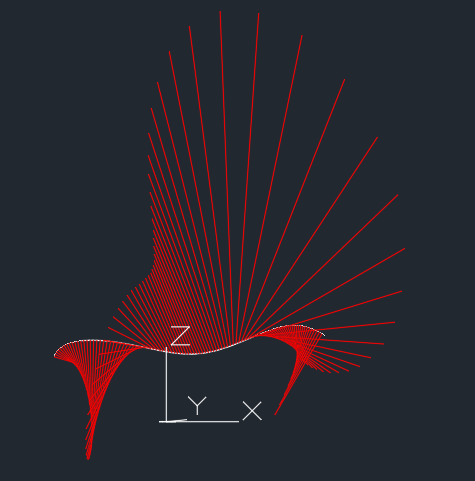
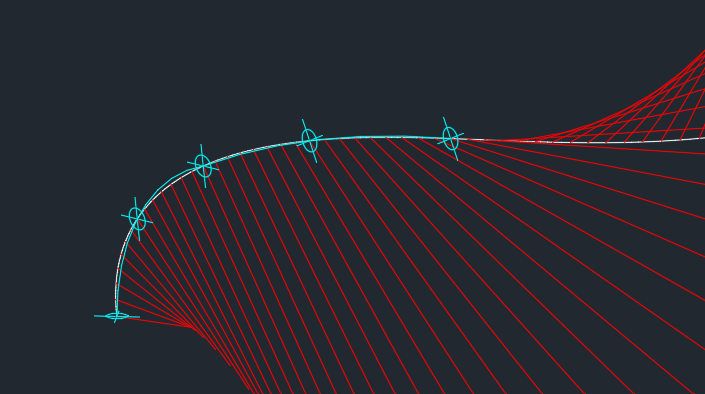
As I understand your question your goal is to approximate a 3D spline as a series of arcs (2d of course) that are positioned in series. To get a feel for the 3D nature and curvature of the spline I suggest first running my splinecurvature LISP program on the spline. Respond Y to the prompt: Do you want radius-of-curvature instead of curvature? [y/n] <n>: y and you will get a result like the following: The red lines are created at 100 points along the spline. They show the instantaneous radius of curvature of the spline at the points. The ends of the red lines are at the locations of the center of an arc that would duplicate the spline's curvature for a specific point on the spline. With this information you need to choose, starting at one end of the spline, 3 points along the spline that are in a generally "flat" area. Define a UCS for the 3 points then add an arc via the three point method. Repeat the process for the next "flat" section. Here are the results for two arcs. (defun C:SplineCurvatue (/ path inc n osm par der1 der2 curva p perp normv p2 sf curveType ans) ; = Degree Of Curvature - Lines ; Creates curvature lines or radius-of-curvature lines ; normal to a spline. ; LRM 8/18/2022 edited to place curvature vectors outside (setq path (car (entsel)) inc (/ (vlax-curve-getEndParam path) 100) n 0 osm (getvar 'osmode) ) (setvar 'osmode 0) (setvar "cmdecho" 0) (initget "y n") (setq ans (getkword "Do you want radius-of-curvature instead of curvature? [y/n] <n>: ")) (if (= ans "y") (setq curveType 1) (setq curveType 2 sf (getdist "Enter scale factor.") ) ) (repeat 100 (setq par (* inc n)) (setq der1 (vlax-curve-getfirstDeriv path par) der2 (vlax-curve-getSecondDeriv path par) ) ; calculate curvature at point par (setq d (distance '(0 0 0) (cross der1 der2))) (if (> (abs d) 1.0e-15) (progn (setq curva (/ (expt (distance '(0 0 0) der1) 3) d)) (if (= curveType 2) (setq curva (* -1. (* sf (/ 1. curva)))) ) (princ "\n") (princ n) (princ " curvature = ") (princ curva) (setq p (vlax-curve-getPointAtParam path par) perp (unitv (cross der1 (cross der2 der1))) normv (mapcar '* perp (list curva curva curva)) p2 (mapcar '+ p normv) ) (command "_.line" p p2 "") ) ; end progn ) (setq n (1+ n)) ) (setvar 'osmode osm) (setvar "cmdecho" 1) (princ) ) ;;; Compute the cross product of 2 vectors a and b (defun cross (a b / crs) (setq crs (list (- (* (nth 1 a) (nth 2 b)) (* (nth 1 b) (nth 2 a)) ) (- (* (nth 0 b) (nth 2 a)) (* (nth 0 a) (nth 2 b)) ) (- (* (nth 0 a) (nth 1 b)) (* (nth 0 b) (nth 1 a)) ) ) ;end list ) ;end setq c ) ;end cross (defun unitV ( v / d) (setq d (distance '(0 0 0) v) d (mapcar '/ v (list d d d)))) SplineCurvature.lsp

-
Hey thanks for the reply The reason to convert to a small quantity of ARCs is because the SPLINE will become fabricated out of steel pipe. Fab method requires the shape to be fabricated from curved pipe segments. Unfortunately for this project, corkscrew/spiral pipe segments are not an option, so we are stuck with ARCs
-
Obviously, you can't use the original spline or you'd be doing that. It might help us to know why, though. I assume the goal is a 2D spline. Have you thought about starting with an actual spline? That way you can adjust the control points and their tangents, instead of using polyline arcs, which seems more complicated. If the goal is a 2D polyline, you can still draw it with a spline and then convert it to a polyline with SPLINEDIT. The more we know about your project, the better we can help. Right now I'm just guessing.
-
Another way to handle this issue is to define your title block as an AutoCAD block. That way the seal is already included. You put the seal on its own separate layer and turn that layer on when necessary. Another option is to use visibility states, so you only tap on a button to show the seal. But first, as the other answers suggest, clean up the seal block. That may take care of it.
-
If you want to do some thinking, this is the row that draws the line: (entmake (list (cons 0 "LINE") (cons 10 pt1) (cons 11 pt2) (cons 8 (cadr lay)))) work it out backwards from there and you might get close to what you want, need to adjust pt1 and pt2. Without looking properly I think BigAl has forgotten to increment something or a variable is set on the wrong side of a loop. Be good learning to see if you can get close?
-
Civil Drafting with AutoCAD Project-Civil Drafting with AutoCAD Project
ReMark replied to nelsonm's topic in Student Project Questions
BIGAL: I agree with you 100%. Unfortunately, Penn-Foster does not offer TIN software nor do they teach its use. And, unless a student has some basic knowledge of LISP to begin with, I doubt they would even think of taking advantage of its functionality. In this project the old way is the best the students can count on. Re: Points. The project is not being done in 3D; strictly 2D all the way. -
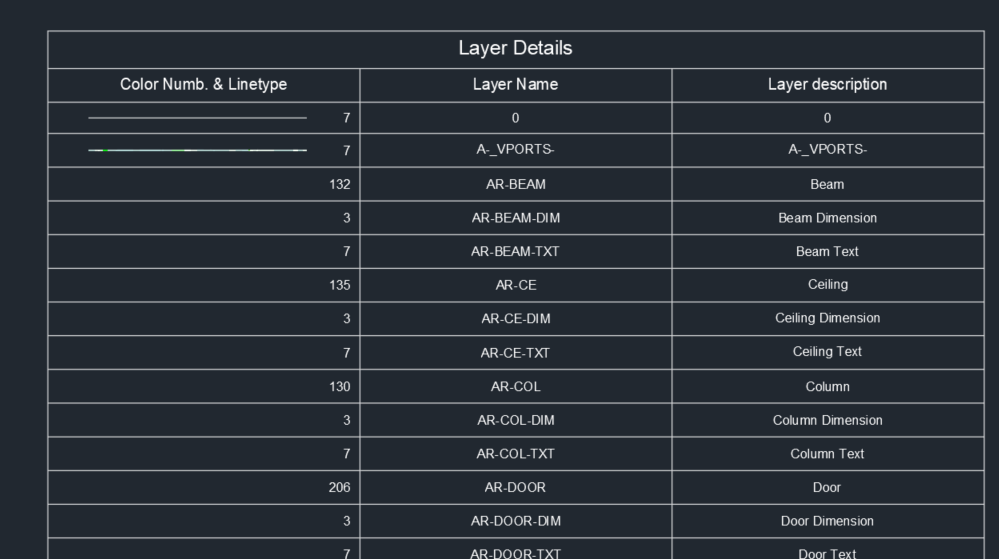
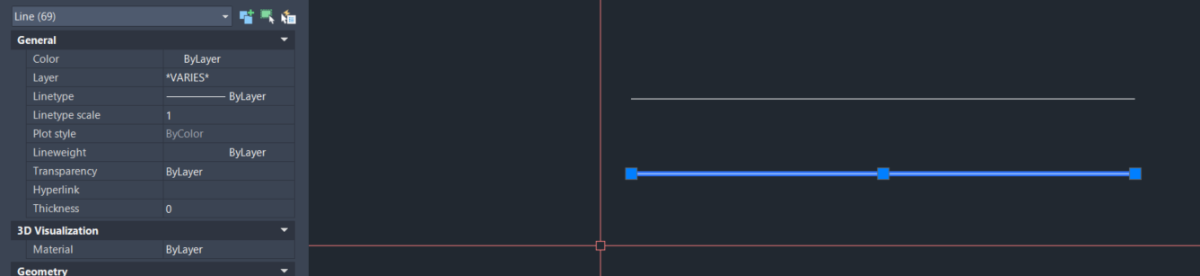
Thanks @BIGAL tested in AutoCAD 2024. some lines are not showing up. Anyway, the code by @nod684 works and it is according to my needs, Lines and Text not AutoCAD table. EDIT : I tried exploding the table and found that the 2nd line consists of 69 overlapping lines.