Leaderboard



Popular Content
Showing content with the highest reputation on 02/19/2026 in all areas
-
If you use Al Roger's old Lisp code to draw structural shapes (STL.LSP), I have replaced his old 9th Edition AISC shapes with the latest 16th edition shapes. I left his data for the Metric shapes alone since I did not have a source for the dimensions. His Lisp routine reads several DIM files that contain the shape data and I have not touched it. I just replaced his old DIM files with new ones. When I did the DIM files for the 13th edition of AISC, I kept Al's old data and appended a 9th on the end of the shape name and the 13th edition was added onto the end of the data. IIRC, the AISC has a spreadsheet with very old profiles for steel shapes from the late 1800's and the motivated user could add the old shapes at the end of the DIM files. The 16th edition of the AISC shape data includes many new rolled sizes. In order to use the Lisp, you have to unzip the package into a folder in your search path where it loads your LSP files and all the DIM files must be in the same folder so his program can find them along with the help file. I tested the program out on my 2024 version of ACAD and have used it on all prior ACAD versions that I've used for many years. For new users, after you Load the Lisp, you just type STL and his dialog window pops up and you select the shape and size and the 2D End, 2D Top, 2D Side, 3D Sold, or 3D Surface, and the Lisp will draw the shape. I'm a Structural Engineer and use STL to draw the shapes to see if the shape is too close to the anchor bolts on my base plate design. I don't do much drafting and not much Lisp, so I am in awe of the talent that came up with this code. I just occasionally edit the DIM files so it can draw new shapes. Edit--Edit-- I found an error in the Stl_Tube.DIM file and it was corrected with the revised ZIP below. I also edited the DCL file to change the Label for Tubes to HSS which is what the AISC now calls them. I found another error in the LSP code with a divide by 2 producing errors (it should have been /2.0) ) HTH Al's Steel Mill 2023_R1.zip1 point
-
 You need to start a new thread in the AutoLISP, Visual LISP & DCL Forum.1 point
 -
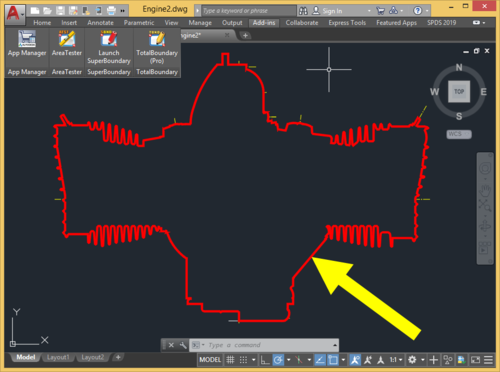
https://github.com/mapbox/concaveman https://github.com/sadaszewski/concaveman-cpp it’s not automatic in that it requires parameters depending on the point distribution. concavity: A relative measure of concavity. A value of 1 provides a detailed shape, while Infinity results in a convex hull. lengthThreshold: Determines the minimum segment length considered for further detailing, with higher values leading to simpler shapes. Chomped through this 280k point set import traceback from pyrx import Ap, Db, Ed, Ge # --- Command for PyRx --- @Ap.Command() def doit0(): try: ps, ss = Ed.Editor.select([(Db.DxfCode.kDxfStart, "POINT")]) pnts = Ge.Point3dArray([Db.Point(id).position() for id in ss]) hull_points = pnts.concaveHull(0.8, 100) db = Db.curDb() pl = Db.Polyline(hull_points) pl.setDatabaseDefaults() pl.setClosed(True) pl.setColorIndex(2) db.addToModelspace(pl) except Exception: traceback.print_exc()
 1 point
 -
This is a great guide working with Delaunator. https://mapbox.github.io/delaunator/ It explains the relationship between half-edges and triangles. in short the triangles are created in an order, you can iterate the triangles while being aware of the adjacent triangles. A [-1] in the half edge list means that edge is on the outside hull.1 point
-
The algorithm is fast because it returns a list of indexes, to your original array, of the points that make up the triangle, it also returns a list of half edges from pyrx import Ap, Db, Ed, Ge, Gi import traceback @Ap.Command() def doit(): try: filter = [(Db.DxfCode.kDxfStart, "POINT")] ps, ss = Ed.Editor.selectPrompt( "\nSelect points: ", "\nRemove points: ", filter ) if ps != Ed.PromptStatus.eNormal: return pnts = Ge.Point3dArray([Db.Point(id).position() for id in ss]) d = Ge.Delaunator(pnts) print(d.triangles()) print(d.halfedges()) except Exception: print(traceback.format_exc()) [0, 4, 3, 2, 1, 0, 0, 1, 4, 3, 2, 0] [8, -1, 11, -1, 6, 10, 4, -1, 0, -1, 5, 2]1 point
-
Steps after typing STL at the prompt to start the program: 1) Select the Shape button (in your screen shot you selected Pipe-Std 2) Select the View you want (2d end etc.) 3) Select the size from the drop down Size table. 4) The OK button will now be available, and you select OK. 5) The dialog box will go away and you select a point on your drawing to start the shape. Each shape has a different starting point. 6) Doubly symmetric shapes like pipes will draw the shape 7) Singly symmetric shapes like angles will put the shape in and you can rotate it as you like dynamically. 8 ) To draw another shape, you type in STL again and repeat as needed.
1 point