Learn AutoCAD with our Free Tutorials
Welcome to CADTutor
CADTutor provides the best free tutorials and articles for AutoCAD, 3ds Max and associated applications along with a friendly community forum. If you need to learn AutoCAD, or you want to be more productive, you're in the right place. See our tip of the day to start learning right now!
Free Tutorials and More…
The Tutorials section provides over 100 original tutorials for AutoCAD, 3ds Max and other design applications. Michael’s Corner is an archive of productivity articles that brings you the best AutoCAD tips and tricks. Our Forum is a lively community where AutoCAD users can ask questions and get answers. The Downloads area provides free AutoCAD blocks, free AutoLISP routines and free images.
Tutorials of the Moment
Recently viewed tutorials
-
The Interface

This tutorial gives a brief explanation of the MAX interface items commonly used and introduces you to the important areas of the interface. Format: Text/Image
Last visited: less than one minute ago
-
Entering Survey Data using AutoCAD

These techniques apply to basic CAD programs such as AutoCAD, IntelliCAD, etc. If you have a civil/survey program or add-on, such as Land Desktop, SurvCADD, Eagle Point, etc., then there are built-in tools for entering lines and curves. Format: Text/Image
Last visited: 1 minute ago
-
Creating Seamless Tiles

This tutorial shows you how to create perfectly seamless image tiles in Photoshop. The image tiles are perfect for creating image based materials in AutoCAD, MAX or Bryce. Format: Text/Image
Last visited: 3 minutes ago
-
Project Overview

This tutorial describes the process of creating a 3D infrastructure and landscape scene from an AutoCAD design drawing using MAX/VIZ and Quickscape application software. Format: Text/Image
Last visited: 4 minutes ago
-
Dimensioning

This tutorial describes the options and commands available for dimensioning drawings and how to use them. The correct use of AutoCADs dimension tools is the key to producing clear and concise measured drawings. Format: Text/Image
Last visited: 6 minutes ago
-
Paper Space Exercise

AutoCAD's paper space mode is a bit like having a page in a scrapbook onto which you can paste different views of your AutoCAD drawing. This whole page can then be plotted. This exercise demonstrates how. Format: Text/Image
Last visited: 6 minutes ago
CADTutor Tutorials
Our tutorials are comprehensive but straightforward introductions to AutoCAD and related software. They are designed to help beginners get to grips with design workflows as quickly as possible. There are over 100 to choose from, some text/image based and others in video format. Whatever stage you are at in your learning, you should find a tutorial to help.
Forum Latest
Currently Active Topics
STEP vs SAT: Which one preserves editable 3D geometry more reliably?
by indiancad
3 replies
Last post: 3 hours ago
Xref hatches plot solid black and fonts change on my machine only
by xurshid_viewport
2 replies
Last post: 5 hours ago
Beyond APPLOAD: A local script manager for those of us with too many LISPs
by VicoWang
50 replies
Last post: 9 hours ago
VedaCAD - Technical Support, Updates & Community VCIDs
by VicoWang
24 replies
Last post: 13 hours ago
Getting Error message on opening Cadtutor.
by BIGAL
17 replies
Last post: 30 hours ago
ucs and drawing problem
by LIU
12 replies
Last post: 36 hours ago
This Week's Hot Topics
Why do hatches become difficult to manage in complex drawings?
by indiancad
10 replies
Viewed: 486 times
Using Arraypath function via scripting, duplicating lines are created in opposite direction of curve path
by harshil
9 replies
Viewed: 376 times
Is the LIST command enough to troubleshoot CAD geometry?
by indiancad
6 replies
Viewed: 310 times
STEP vs SAT: Which one preserves editable 3D geometry more reliably?
by indiancad
3 replies
Viewed: 168 times
Xref hatches plot solid black and fonts change on my machine only
by xurshid_viewport
2 replies
Viewed: 173 times
[Architecture] Building "Cloud-Native" LISP Plugins without writing a single line of Network Code
by VicoWang
0 replies
Viewed: 244 times
CADTutor Forums
Our forum is a vibrant community of experts and beginners. The main focus is helping beginners get to grips with AutoCAD and to help more advanced users become more productive. The AutoLISP forum is one of the busiest out there, providing expert advice for busy professionals.
AutoCAD Productivity
Dual Dimensions in a Dimension Style
From: AutoCAD Productivity Articles #147
Originally published: August 2016
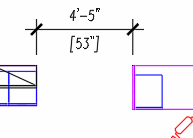 ‘Alternate Units’ doesn't always mean Metric.
To follow along, set the current Dimension style to one you like. The following exercise begins with a Dimension Style with the Unit format set to Architectural on the Primary Units tab.
How to Display Ft′-In″ as well as Inches
Launch the Dimension Style dialog box [Alias: D], click New and enter a name, then click Continue.
Click the Alternate Units tab.
In the upper left corner, put a check in the box for Display Alternate Units.
Set the Unit Format to Fractional.
Note: I would suggest you set the values for the Precision and the Round off to the same values as those on the Primary Units tab.
Set the Multiplier for Alt Units to 1.00.
In the Suffix edit box, put the inch marks ( ″ ).
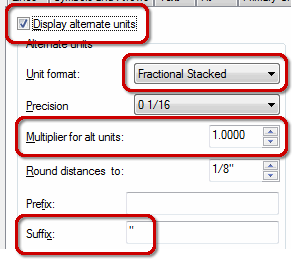
The last setting you may want to make is to set the Placement feature radio button (under the preview) to Below Primary Value.

Click OK, Close the Dimension Style dialog box, then check out your new dimension!
See all the articles published in August 2016
Michael's Corner
Between 2003 and 2016, Michael Beall (and one or two guests) wrote almost 600 articles for CADTutor. The focus of these articles is AutoCAD productivity, and although some of them are now more than a few years old, most remain relevant to current versions of AutoCAD. The article above is just one example. Check out Michael's Corner for a full listing.
Image of the Week
-
19th – 25th October 2026

This week's image is by Oppie
Software used: AutoCAD 2011
-
Last Week's Image

Last week's image is by boofredlay
Software used: SketchUp and Twilight Render
-
Two Weeks Ago

This image is by mitchellrodhous
Software used: AutoCAD 2011
-
Three Weeks Ago

This image is by herdy1212
Software used: 3ds Max
Gallery of Work
Over the years, our forum members have contributed hundreds of images, showcasing their amazing work. The images above are just a small selection that demonstrate the wide range of project types our community is involved with. Take a look at our gallery to see all the images published in the last 12 months.
Tip of the Day
Command line in a window (F2)
The command line can be very useful, especially for beginners because AutoCAD often gives useful prompts which helps when learning how to use some of the more complicated commands. The command line is also used by AutoCAD to report information back to the user, but sometimes that information may run to several lines of text, and disappear from view. A good example of this is the Distance command (you can run this from the keyboard by typing DIST). The problem is that by default, the command line is only two lines high and so if you use the Distance command, you don't even see the distance reported to the command line.
One way round this problem is to increase the depth of the command line to show more lines but this takes up valuable drawing area. A better solution is to display the command window using the F2 key on the keyboard.
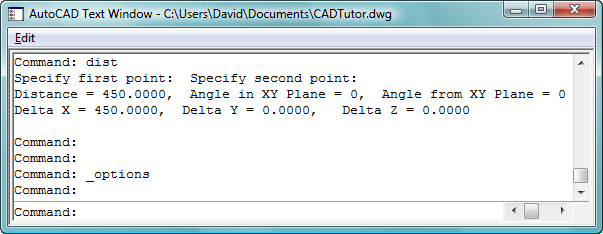
As you can see above, the command window also allows you to scroll back through the command line so that you can review your recent drawing history.
Missed a Tip?
Did you miss yesterday's tip? Maybe you forgot to drop by or maybe you don't visit over the weekend. If so, you can now see all the tips published during the past week. Also, if you have a tip you'd like to share with us, you can post it on our forum and if we like it, we'll publish it here.