All Activity
- Today
-
When you’re learning AutoCAD, some topics don’t always go very deep. MText is one of those. A new user will learn how to create new text objects, along with the basics of editing and formatting them. Quite often, these topics will be covered in a Basics or Essentials course, with the deeper dive tucked away in a future Advanced course. Often, too, is the fact that many (if not most) users never make it to the advanced course. If that’s you, today’s post is going to look at a few of the more useful MText editing tools. Format fractions and tolerances While lettering in the olden days of board drafting, fractions were always expressed inline – or what we would now call horizontal. Today, we have the option of using a stacked fraction as well, with your choice of slash style. Just make sure the method you choose is in accordance with your published CAD Standard, please. Start by creating a new MText object (or edit an existing one). In the In-Place Text Editor, type the numerator (for example, 1). Then type one of these special characters: – Forward slash (/) for a horizontal fraction – Number sign (#) for a diagonal fraction Follow it immediately with the denominator (for example, 2) and press the Spacebar or another valid character. The text stacks automatically, and a lightning-bolt icon appears next to it. Click the lightning-bolt icon to adjust the stack: switch between horizontal and diagonal styles, open Stack Properties to fine-tune size and alignment, or align decimal points for cleaner tolerance displays. You can also right-click the stacked text and choose Stack Properties for more control. For tolerances, type a numeric value, a caret (^), and the second value – such as 1 +0.05^-0.01 and then press Spacebar. The caret creates a tolerance stack with no dividing line. Use the lightning bolt icon to unstack the tolerance if you need to. These tools let you produce professional-looking fractions and tolerances directly in the text editor without extra steps or external workarounds. Convert your text to a list It’s also easy to create Numbered, Lettered, or Bulleted lists. I’ll use a numbered list in my example, but once you get it, the others are just as easy. If the Text Editor is still active, select the text you want to convert. If not, double-click the MText object to open the editor and make your selection. On the Text Editor contextual ribbon tab, go to the Paragraph panel and click the Bullets and Numbering drop-down menu. Choose Numbered. (or, as I said, Lettered or Bulleted). Note that list formatting only works when the Allow Bullets and Lists option is enabled. After the list is applied, adding new items is straightforward: place the cursor at the end of an existing item and press Enter. The numbering updates automatically. I told you it was easy. How do you create sublists, you might be asking? Again, it’s easy when you know how. Select the text that you want to turn into a sublist, then press the Tab key on your keyboard. The selected text will indent and renumber. What if you chose the wrong text, or you get a redline back telling you to remove the sublist? Again, easy. Select the text in the sublist, and this time press Tab and Shift at the same time. The list will return to its original condition. Do you need to remove the list (or bullets, or letters) entirely? From the editor, select the text to remove the formatting from, then expand the Clear Formatting pull-down menu from the contextual ribbon (as shown in the image below). Click on Remove All Formatting to remove the numbering from your text object. Insert images into your MText Many symbols are automatically inserted when you create them. The diameter symbol comes to mind when you create a Diameter Dimension. Most of the time though, you’ll need to enter a special symbol into an MText string yourself. Let’s say you need to add the little “circle R” symbol when you reference something with a registered trademark. In our example, we’ll use everyone’s favorite CAD program. Place your MText editor cursor at the point where you want the symbol to be inserted. In our case, right after the word AutoCAD. Now, from the contextual ribbon, click on the Symbol drop-down menu. At the top, you’ll get the big three, Degrees, Plus/Minus, and Diameter. Notice the %%x after each. Back in the day, we had to remember these codes in order to place the symbols into our text. I’m glad times have changed. Below those are the most commonly used symbols, followed by their Unicode number. If what you need is in this list, simply click on it, and it will appear at your cursor. If not, you’ll have to find it in the character mapping for the font. Click on Other at the bottom of the dropdown, and the Character Map dialog will display. Find your symbol, click on it, then click on the Select button. This workflow differs, as you’ll be copying your symbol(s) to the clipboard instead of inserting them via the dialog. Click Copy to do this. Dismiss the dialog with the X in the corner, then paste at your cursor location. That’s it! There you go. Three workflows that aren’t in most beginners’ coursework. It would be smart to take some time to go through the other tools in the menu that you may not be familiar with. Maybe you’ll find that one tool that you need, but didn’t even know existed. More Tuesday Tips Check out our whole Tuesday Tips series for ideas on how to make AutoCAD work for you. The post MText – Beyond the Basics: Tuesday Tips With Frank appeared first on AutoCAD Blog. View the full article
-
AutoCAD is CAD software used to create precise 2D drawings, 3D models, technical documentation, and industry-specific design workflows. Many different professionals benefit from developing their design ideas with AutoCAD and the utmost level of accuracy it provides. Whether it’s an architect delivering a floor plan, an engineer creating an electrical layout, or a product designer preparing parts for manufacturing, AutoCAD helps them express their design intent in the clearest terms, with consistent documentation and a full slate of collaboration features. Extended teams of manufacturers, drafters, and construction professionals using AutoCAD can coordinate frequent design changes and handoffs with confidence. Common AutoCAD uses and applications Most workflows start with the simple need to create accurate design information that all contributors can understand, review, and build upon. AutoCAD excels in keeping projects accurately organized and consistently documented through multiple rounds of review, whether they be 2D drawings, 3D models, technical documents, or shared DWG files. Common AutoCAD uses include: 2D drafting: Create plans, layouts, sections, elevations, details, and other precise technical drawings. 3D design: Model objects, spaces, components, and design options for visualization and review. Technical documentation: Add dimensions, annotations, notes, symbols, layers, title blocks, and plotting standards. Floor plans and space layouts: Plan rooms, buildings, furniture, equipment, circulation paths, and site elements. Schematics and diagrams: Document electrical layouts, control diagrams, mechanical systems, and other technical relationships. Product concepts: Explore early ideas for parts, products, assemblies, and manufacturing workflows. Project layouts: Organize equipment, utilities, production areas, construction zones, and other planned spaces. Collaboration and review: Share drawings, collect markups, coordinate revisions, and keep project information moving. Across these applications, AutoCAD helps teams work together with precision and consistency, whether they are starting a new concept or refining the details of a drawing set. Explore more AutoCAD features. What industries use AutoCAD? The many design and make industries that use AutoCAD have their own methods and deliverables. Yet they all depend on evaluating accurate drawings, models, and documentation before moving from concept to completion. AutoCAD’s clear technical communication between diverse contributors like designers, builders, and suppliers helps keep projects consistent. <?xml encoding="utf-8" ?>IndustryHow AutoCAD is usedArchitectureCreate floor plans, elevations, sections, details, and construction documentation for buildings and spaces.EngineeringDraft technical drawings, layouts, diagrams, and design documentation for mechanical, electrical, civil, and related engineering work.ConstructionReview plans, coordinate shop drawings, document field changes, and support as-built drawing workflows.ManufacturingPrepare part drawings, assembly layouts, tooling documentation, equipment plans, and production drawings.Product designExplore product concepts, component layouts, design options, and documentation for fabrication or manufacturing review.Interior designCreate space plans, furniture layouts, reflected ceiling plans, interior elevations, and finish documentation.Facilities and operationsMaintain building layouts, equipment plans, space records, and documentation for ongoing operations. AutoCAD for architecture, engineering, and construction In architecture, engineering, and construction, complex projects and technical information involving many contributors and design changes can be difficult to coordinate. Any misunderstanding can lead to costly rework. AEC teams commonly trust AutoCAD to move precise plans and technical documentation through early design, revisions, reviews and construction. Architects need to convey their design intent to a diverse set of clients, consultants, and builders, all while potentially changing layouts and other details repeatedly during development. With AutoCAD, architects can create entire designs, including elevations, sections, and floor and ceiling plans, which stay consistent as a project evolves. Engineers need to draft building systems, civil layouts, structural details, and site plans, with technical calculation and requirements other teams can interpret. AutoCAD’s interface helps engineers design components and systems with tight constraints, while creating schematics and diagrams that clearly communicate requirements to other audiences. Construction professionals can face problems when site conditions differ from design plans and need to document field changes. AutoCAD makes dealing with the unexpected easier, allowing them to review drawings, document field changes, and support as-built records. AutoCAD for manufacturing and product design Moving a product from an early concept to production requires different types of design information at each stage. Product designers need drawings and models that help them explore ideas and communicate design intent. Manufacturing teams need detailed documentation that shows how parts and assemblies should be produced. AutoCAD supports both stages by helping teams create, review, and update precise design information. Exploring and refining product designs Product designers use AutoCAD to develop early ideas into drawings and 3D models that others can evaluate. They can compare layouts, establish dimensions, study proportions, and visualize spatial relationships between components. Common product design uses include: Concept layouts for products, parts, and components Dimensional studies for evaluating size, proportion, and fit Component drawings for review, feedback, and revision 3D models for visualizing form and spatial relationships between components Design documentation for communicating with engineering teams, suppliers, and manufacturers These drawings and models help teams clarify design decisions before preparing detailed production documentation. Preparing designs for manufacturing Once a design moves toward production, manufacturing teams need clear information about dimensions, components, assemblies, and fabrication requirements. AutoCAD helps teams prepare technical drawings and documentation that communicate how parts should be produced and assembled. The Mechanical toolset included with AutoCAD for Windows provides additional features for mechanical drafting, including standards-based parts and tools, mechanical drawing automation, and bills of materials. Common manufacturing uses include: Mechanical part drawings with dimensions, notes, and production details Assembly layouts that show how components fit together Tooling and fixture drawings for production or shop-floor workflows Fabrication drawings for cutting, machining, forming, and related processes 2D equipment and facility layouts that show machinery, work areas, and circulation Documentation for internal review, supplier communication, drawing revisions, and production handoff Together, these workflows help teams carry approved design decisions into the drawings and documentation used for manufacturing. AutoCAD for interior design and space planning AutoCAD is used for interior design, including space design software workflows. Space planning is a core part of many interior design projects, helping designers organize spaces around how people will use them. Designers trust AutoCAD’s detailed 2D and 3D layouts and clear documentation to convey how a space will look, feel, and function. AutoCAD helps interior designers mix the aesthetics of furniture and finishes with the intricacies of elevations and layers to create both professional- and client-facing drawing sets. Whether they are clients, vendors, installers, or fabricators, contributors have what they need to understand design intent. Designers can compare different arrangements of furniture, equipment, circulation paths, and clearances before a project moves forward. Common interior design and space planning uses include: Floor plans that show walls, doors, windows, and room relationships Furniture plans for seating, workstations, storage, and built-ins Reflected ceiling plans for lighting, ceiling features, and coordination points Interior elevations for cabinetry, fixtures, materials, and wall details Millwork and built-in details for counters, shelving, reception desks, and display areas Finish plans and schedules for flooring, wall treatments, materials, colors, and specifications Blocking out departments, rooms, zones, and circulation paths Testing furniture layouts and workstation arrangements Checking clearances around doors, desks, equipment, and shared areas Planning adjacencies, such as which rooms or departments should sit near each other Comparing layout options before presenting a recommended plan Updating plans as occupancy, equipment, or project requirements change Drawing sets for client review, construction coordination, or installation AutoCAD helps keep space planning and interior design flexible. Its blocks, layers, dimensions, and other annotations make it easier to coordinate work and communicate design intent to a web of contributors and stakeholders. AutoCAD uses across industries and specialized workflows Mechanical, electrical, and civil professionals have very specific needs, but they’re all at risk of problems without extreme precision, repeatable standards, and clear annotations. Parts may not fit without precise tolerances; wiring relationships can be difficult to trace; existing site conditions may conflict with the proposed work. That’s why AutoCAD also offers industry-specific toolsets for specialized workflows, including Architecture, Mechanical, Electrical, MEP, Map 3D, Plant 3D, and Raster Design. <?xml encoding="utf-8" ?>Application areaCommon AutoCAD usesArchitectureAutomatically generate floor plans, elevations, sections, and ceiling grids. Place walls, doors, and windows using architectural components and specialized drafting tools.Mechanical designCreate mechanical drawings using standards-based parts, tools, and custom content. Organize objects on custom layers and automate documentation tasks such as creating bills of materials.Electrical designCreate, modify, and document electrical control systems. Use intelligent electrical symbols, automate wire numbering and component tagging, and generate customized reports.MEP designCreate and document HVAC and building systems using intelligent mechanical, electrical, and plumbing objects. Update related drawings, sheets, and schedules as designs change.Plant designCreate and edit piping and instrumentation diagrams and 3D plant models. Produce piping orthographic and isometric drawings directly from the model.Mapping and geospatial workflowsAccess, edit, and manage CAD and GIS data for planning, design, and infrastructure management. Convert data between DWG and GIS formats and work with spatial data from multiple sources.Raster and scanned drawingsEdit and clean up scanned drawings, modify raster regions using standard AutoCAD commands, and convert raster images into DWG objects with vectorization tools. What types of professionals use AutoCAD? Professionals across a wide range of industries use AutoCAD to create, review, and coordinate precise design information. Some users work directly in DWG files to produce drawings and documentation, while others review designs, communicate requirements, manage changes, or coordinate work across project teams. <?xml encoding="utf-8" ?>Professional roleHow they use AutoCADArchitectCreate floor plans, elevations, sections, details, reflected ceiling plans, and construction documentation.EngineersDraft and review technical drawings for mechanical, electrical, civil, structural, MEP, and related design workflows.DraftersTurn design direction into precise drawings, clean up markups, manage layers, apply standards, and prepare sheets.DesignersDevelop layouts, concepts, space plans, product references, and drawing sets for review or approval.ContractorsReview construction drawings, coordinate shop drawings, document changes, and support as-built drawing workflows.Construction professionalsUse drawings to coordinate work in the field, clarify details, track revisions, and communicate with project teams.Product designersCreate concept layouts, component drawings, dimensional studies, and documentation for review or manufacturing handoff.Manufacturing teamsPrepare part drawings, assembly layouts, tooling details, equipment plans, and production documentation.CAD managersMaintain templates, layers, standards, blocks, plotting setups, and drawing practices across teams.Students, educators, and hobbyistsLearn CAD fundamentals, document projects, create personal designs, and build practical drafting skills. How AutoCAD supports 2D drafting and 3D design workflows AutoCAD supports both 2D and 3D CAD software workflows, making it effective for many types of design work. Some teams use AutoCAD’s full suite of capabilities, while others focus mainly on precise 2D drafting or 3D geometry for design and visualization. <?xml encoding="utf-8" ?>WorkflowWhat it supportsCommon outputs2D draftingCreating accurate linework for plans, layouts, sections, elevations, schematics, diagrams, and technical details.DWG drawings, plotted sheets, PDFs, plans, layouts, diagrams, and construction or production drawings.Technical documentationAdding the information needed to make drawings readable, reviewable, and usable by others. This includes dimensions, annotations, notes, symbols, layers, hatches, title blocks, and plotting standards.Annotated drawing sets, detail sheets, revision-ready files, construction documents, and manufacturing documentation.3D designCreating or working with 3D geometry to study form, fit, space, components, and design options.3D models, visual references, design studies, coordination views, and concept models.Review and coordinationSharing design information with team members, collecting markups, checking changes, and keeping drawings aligned as a project develops.Updated DWG files, markups, reviewed sheets, coordination drawings, and revised documentation. Explore AutoCAD for your design workflow If your daily work involves precise drawings, DWG files, layouts, dimensions, markups, technical documentation, or design coordination, AutoCAD can likely streamline and organize your workflow. Try AutoCAD and evaluate its results on your team’s most common deliverables: 2D plans, layouts, sections, elevations, or schematics 3D design references, models, or visualization needs Construction, manufacturing, or technical documentation Reusable blocks, layers, standards, and drawing templates Collaboration workflows involving reviews, markups, and revisions Industry-specific drafting needs for architecture, mechanical, electrical, MEP, map, plant, or raster workflows If AutoCAD fits the way your team designs and documents work, you can download a free trial of AutoCAD and test it with a project that reflects your real workflow. AutoCAD uses FAQs What is AutoCAD mainly used for? AutoCAD is mainly used for 2D drafting, 3D design, and CAD workflows across industries. Professionals use AutoCAD to create plans, layouts, schematics, models, dimensions, annotations, and drawing sets that communicate design intent clearly. What industries use AutoCAD? AutoCAD is used in architecture, engineering, construction, manufacturing, product design, interior design, facilities planning, mapping, and related design fields. These industries use AutoCAD to create accurate drawings, document project information, coordinate changes, and communicate technical details. Do architects use AutoCAD? Yes. Architects use AutoCAD to create floor plans, elevations, sections, reflected ceiling plans, construction details, and drawing sets. AutoCAD can support early design studies, documentation, coordination, and revisions throughout an architecture project. Is AutoCAD used for 2D or 3D design? AutoCAD is used for both 2D and 3D design workflows. Many professionals use AutoCAD for precise 2D drafting and documentation, while others use its 3D capabilities to model objects, study design options, visualize forms, and support coordination. What professionals use AutoCAD? Many professionals use AutoCAD, including architects, engineers, drafters, designers, contractors, construction professionals, product designers, manufacturing teams, CAD managers, and educators, as well as students and hobbyists. They rely on it for drafting, design, documentation, planning, review, and collaboration. Is AutoCAD used in manufacturing? Yes. AutoCAD is used in manufacturing for part drawings, assembly layouts, tooling plans, fixture drawings, fabrication details, equipment layouts, and production documentation. Product and manufacturing teams can use AutoCAD to communicate dimensions, revisions, and handoff details. Can AutoCAD be used for interior design? Yes. AutoCAD can be used for interior design and space planning. Designers use it to create floor plans, furniture layouts, reflected ceiling plans, interior elevations, millwork details, finish plans, and client-facing drawing sets. The post What Is AutoCAD Used For? appeared first on AutoCAD Blog. View the full article
-
.thumb.jpg.615654602253be56b2fbd5d064834780.jpg)
MASSPROP: Tracking down an unexpected shift in a solid's centroid
indiancad posted a topic in AutoCAD 3D Modelling & Rendering
I was checking a mechanical part using MASSPROP before and after removing a small amount of material. The volume change seemed reasonable, but the centroid shifted more than I expected. My first thought was that the cut might have removed material farther from the main body than I had realized. Since the centroid depends on how the volume is distributed, even a relatively small cut can have a noticeable effect depending on its location. In this situation, I would compare the original and modified volumes first, then check the centroid coordinates and inspect the cut geometry. When you encounter an unexpected centroid shift after a Boolean subtraction, how do you verify whether it is a legitimate geometric result or an unintended modification to the solid? -

GitHub vs APPLOAD: Why is our global impact invisible?
VicoWang replied to VicoWang's topic in AutoLISP, Visual LISP & DCL
@BIGAL You are amazing. Based on the results, you have already systematically customized for design needs such as rapid design + 3D browsing in your early years, and developed a set of such toolkits. This is indeed what is needed for architectural design, and you have achieved this in the CAD system that is least suitable for 3D work. Obtaining walls from the floor line is a smart move, and achieving parametric design capabilities similar to BIM through DCL parameters is also the optimal solution verified by software such as AC (instead of directly modeling in 3D space). Relatively speaking, when we start a project, we even don't reach the level of detail for doors and windows, but rather need quick selection of spatial layouts such as massing, and calculating the area is the main design purpose. By using 2D outlines and stretching them into masses, we can quickly obtain the building area, total area, and area ratios, and other main economic indicators, and perform multi-angle spatial relationship and layout verification. Do there also exist corresponding toolsets for quick area calculation? - Yesterday
-

Aluminum composite panels parametric templates
BIGAL replied to emosms's topic in AutoCAD 2D Drafting, Object Properties & Interface
Again no problems drawing what you want can be multiple panels with options but will be p/line objects, some blocks, dimensions and so on, just not one complete block. Can embed details of the panels as say Xdata can then extract that data into a BOQ. The only real limit in number of panel details is the size of the pc screen, it limits to about 20 lines. Can just auto fill a panel details and for each new panel just change say required values. So say witdth would be the same every time auto filled. Could do a Equal option for number of panels so only fill in one panel sizes. Did notice the little side line work yes can be included. Did you look at movie ? -
 TaoNieSKP joined the community
 -
GitHub vs APPLOAD: Why is our global impact invisible?
BIGAL replied to VicoWang's topic in AutoLISP, Visual LISP & DCL
@VicoWang To answer your questions the code was developed say 30+ years ago. At that time there was no Architecture or Revit. Seem to remember the only package at that time was Archicad on a MAC. No its not BIM It is 3d sort of, what I call 2.5D, a little known trick is to use Thicknes to give the virtual 3d Modelling. The windows and doors are cut into the walls. The windows take advantage of drawing in a vertical ucs, so they have no thickness only line work. There is 3d roofs as well. There is no "SET of" rather it uses dcl input for sizes, number of panels etc. It was put together as a simple house design package, because its drawn as a quasi 3d then out side elevations can be viewed. There is a lot more functions some foundation stuff, balustrading and so on. It was designed for the user who uses purely basic CAD. It has some smart functions like floor planner that allows for the conversion of room layouts to walls. It intent was to save time not be a full blown Architecture package and was reflected in the price. -
@SLW210 I think that's precisely why MS is not just stopping support of it but wants to completely wipe it out of existence...
-
 Sathar joined the community
 -
 liamwhitcomb joined the community
 -
VBScript does function here at work. After I need a manual activation, it probably will not be available. Interestingly, it is being deprecated due to Security issues, goes to show how useless and incompetent IT departments are. I might see if I can bypass the Word requirement on the home computer and use LibreOffice. As per advice from Microsoft, PowerShell or JavaScript is to be the replacement. A quick test shows a JavaScript will run, but not sure if it would be locked at some point until I actually try it as a replacement for VBScript. Here is the supposed timeline. VBScript deprecation: Timelines and next steps | Windows IT Pro Blog
-

Aluminum composite panels parametric templates
emosms replied to emosms's topic in AutoCAD 2D Drafting, Object Properties & Interface
Made parametric sketches and blocks for 1, 2, 3 face panels. Parametric definitions appear as block properties and could be set there along with label tags (detail name and pieces). I spent the whole morning (setting the correct order of constraints) and I didnt come to a clear order how to do that. Autoconstrain does not take into account the constraintsettings dialog. - f.ex. I started mass applying 'coincident'. It applied a lot of other constraints, then I deleted them. - second (if I remember properly) I applied the 45 degree miter locks - then I started moving the inner most flanges (along the miters) with a strech command to see what is going on. - then I applied collinear to all simultaneously moving vertical lines. - then I applied parallel to lock them parallel - added here and there some perpendicular - finally I added horizontal constraint to the bottom horizontal line (now I have to make a new sketch/ block for the same panels if they are rotated 90 degree) - finally finnaly some extra constraints here and there after testing.... I HOPE IT WONT BREAK, but I am gonna need another free half a day to make 4, 5 face and corner templates.... PARAMETRIC.dwg -
SOLPROF: Keeping projected profiles manageable in complex assemblies
indiancad posted a topic in AutoCAD 3D Modelling & Rendering
When generating 2D profiles from a 3D assembly using SOLPROF, the resulting geometry can become difficult to manage when several components overlap in the viewing direction. Separating visible and hidden profiles is useful, but the number of generated entities can make subsequent editing and drawing cleanup cumbersome. For assemblies that undergo frequent design revisions, this raises a practical question about how to keep the projected drawing maintainable. How do you organize and update SOLPROF-generated geometry when the underlying 3D assembly changes? Do you regenerate the profiles after every revision, or use a workflow that minimizes manual cleanup? -
PROJECTGEOMETRY: When projecting 3D edges onto an inclined face
indiancad posted a topic in AutoCAD 3D Modelling & Rendering
I was considering a situation where existing edges from one part of a 3D model need to be projected onto an inclined face of another part. The difficulty is choosing the correct projection direction so that the resulting geometry lands exactly where intended. With angled faces, projecting along the wrong direction can produce a result that looks reasonable in the current view but does not match the intended geometry. For those who use PROJECTGEOMETRY, how do you control the projection direction when working with inclined faces? Do you normally project perpendicular to the target face, use a specified direction, or choose another method? -
GitHub vs APPLOAD: Why is our global impact invisible?
VicoWang replied to VicoWang's topic in AutoLISP, Visual LISP & DCL
@BIGAL I see you've posted this image in several places, and I have some questions: 1. Is this drawn in pure CAD through plugins? 2. Do these doors, windows, and walls carry BIM information? Can they export an IFC information set format for Revit or ArchiCAD? 3. Although your image doesn't express this, as an architect, I want to ask if you have a complete set of door, window, wall, beam, column, and plate drawing CAD plugins? 4. Since I'm more familiar with ArchiCAD, which has a great mode for obtaining 2D drawings from 3D models, how do you achieve this in CAD? Can you achieve a linked design where changes to the model automatically modify the drawings? To be honest, I've never seen a complete VDC (Virtual Design and Construction) building design method executed in CAD similar to BIM modeling. To put it another way, if your plugin set achieves the rapid 3D modeling of buildings (non-precise), actually exporting to SketchUp avoids the traditional workflow of modeling in SU, and then bridging with D5 or twinmotion can quickly set up scenes and output concept renderings. - Last week
-
Why not a step -1 add shapes like circles and rectangs, based on simple offsets, length and width to a pre drawn shape.. Then dimension. eg Rectang with holes.lsp
-
@BIGAL Thanks for the feedback. It's an excellent idea to add the text file output as an option as enabled or disabled.
-
You’ve just given me the reason to stay with powershell scripts. But since @SLW210 your office blocks powershell, I would be curious if it allows for vbscripts to run.
-
I have been pretty busy with the grandkids back and it near Halloween here and the 3D printing, but I did get the CENTERMARK replacement working last week. I created some tough test examples, so there are a few bugs to workout where the native AutoCAD CENTERMARK fails and it uses the crosshairs. I'll try to iron those out next week, the version I have now is working in most situations, the ones not working are blocks that have curve features dimensioned in paperspace through the viewport, and a few odd circles in paperspace, others work in the same layout, I think I know the difference. CENTERMARK command requires an object, so selecting the proper curves by the dimension seems the main issue, though I have that sorted for most situations. This relates back to the samples from my GETLENGTH.lsp and the SOLPROF created viewports and the blocks inside, so normally what I have now should work for most people. If anyone is interested in seeing what I have so far, I might go ahead and post it if there is interest.
-
It might help to give a detailed explanation on what exactly it does?
-
Isn't VBScript going away? I know, they say they're getting rid of all kinds of things and don't, but I read a while back this was definitely getting the axe. I suppose though it wouldn't be on Windows any longer (supposedly next year), you could probably get it and install yourself. I don't use Word at home, I'll have to see if VBScript is available at work.
-
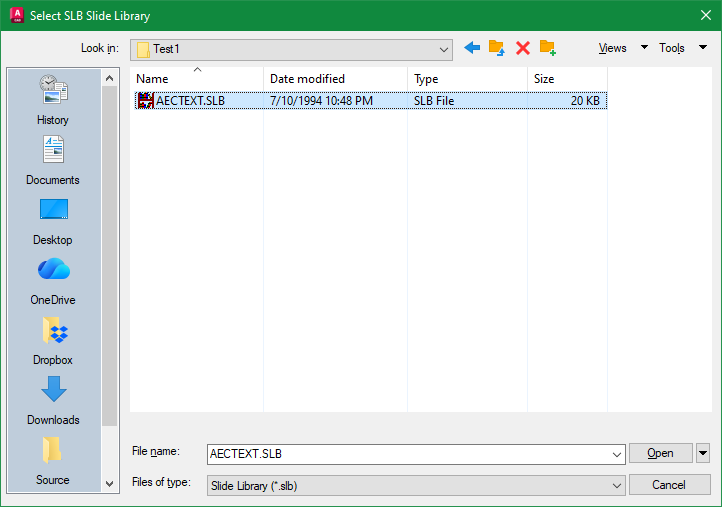
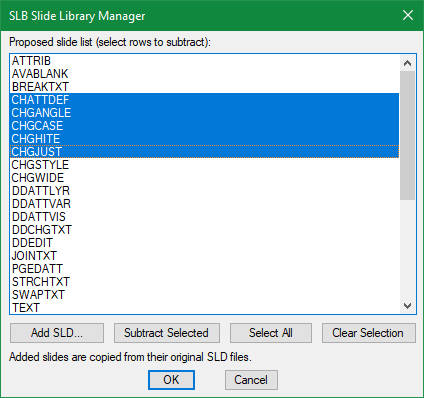
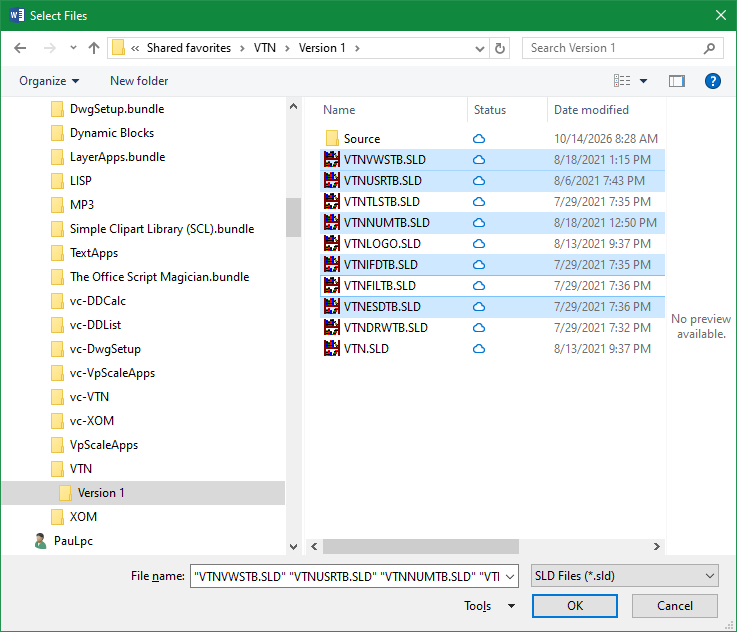
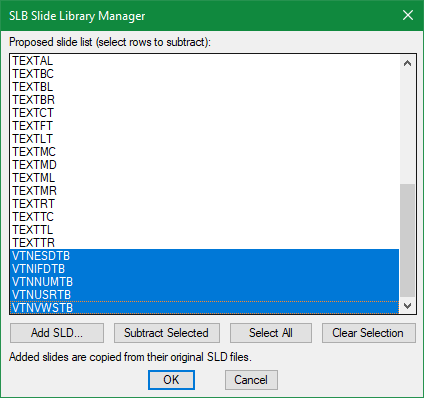
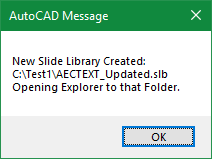
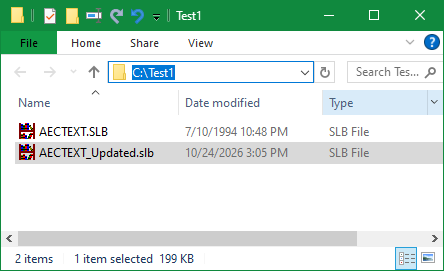
SlbMgr is a Slide Library Manager written in AutoLISP that requires VBScript and Word to be installed. 1) Select an AutoCAD Slide Library (like acad.slb but must be in a writable folder) 2) A Slide Manager window appears listing Slides in the selected Slide Library file 3) Select Slides to Subtract or Slides stored locally to Add 4) File Explorer opens in location where Updated Slide Library file is created Feedback welcome. SlbMgr.lsp

-
Aluminum composite panels parametric templates
BIGAL replied to emosms's topic in AutoCAD 2D Drafting, Object Properties & Interface
Must it be a dynamic block ? Have a look at this video. Do windows.mp4 -
Update V2: https://drive.google.com/file/d/1tKI38W60KEjrlQ-NF4Rh-gctgxSd8HQf/view?usp=drive_link
-
 zac9090v joined the community
 -
Aluminum composite panels parametric templates
emosms replied to emosms's topic in AutoCAD 2D Drafting, Object Properties & Interface
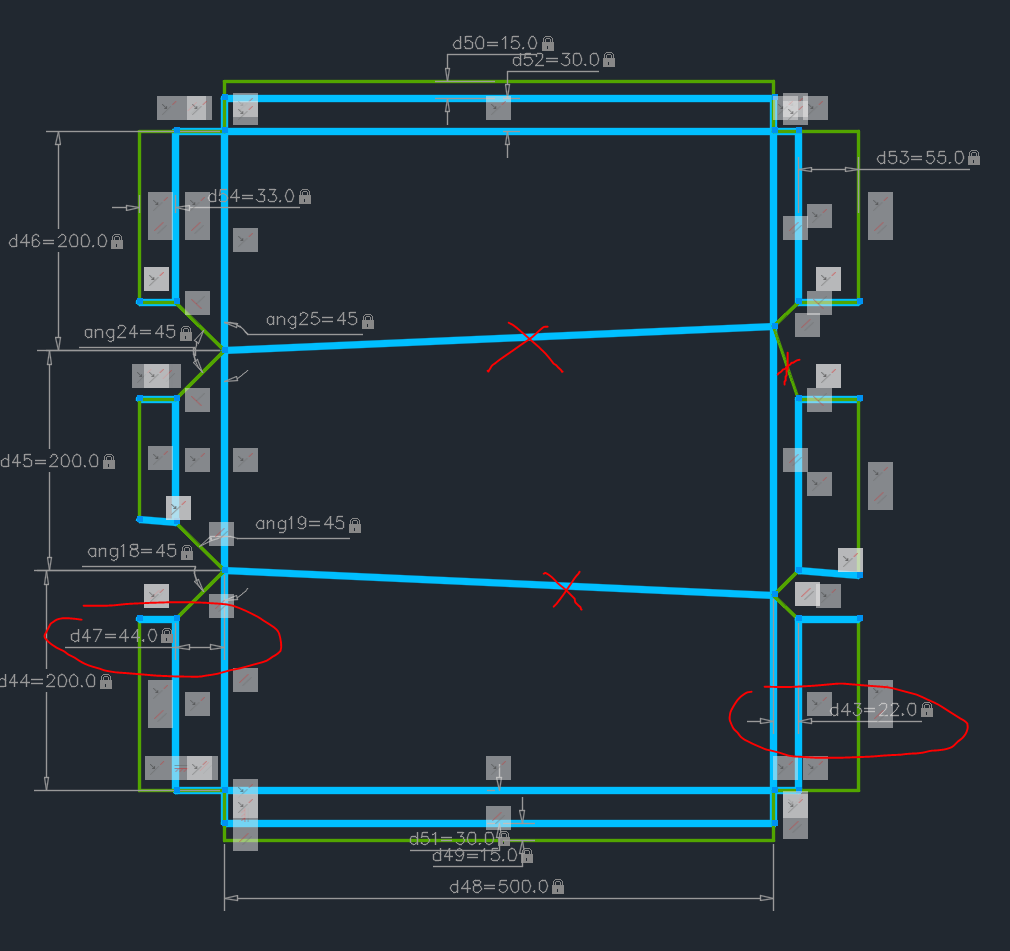
Hi, the 1 and 2 face templates work. The 3 face templates are squared in yellow, one is parametric sketch, the other is a dynamic block, completely messed up now. Seems easier to apply strech action in a dynamic block but I still have to apply TONS of constraints (coincident points, parallel...) I understood I can mass apply them with AUTOCONSTRAIN, but still needs a lot of adjustment and clean up. At least didn't reach the "overconstrained" warining within a dynamic block. PARAMETRIC.dwg -

Aluminum composite panels parametric templates
SLW210 replied to emosms's topic in AutoCAD 2D Drafting, Object Properties & Interface
Welcome to CADTutor! Can you post a .dwg? -
Aluminum composite panels parametric templates
emosms posted a topic in AutoCAD 2D Drafting, Object Properties & Interface
Hi, I am struggling to make this parametric template work. It is always 1 constrain short of making it behave properly. F.ex. in the curent hair pull-off session I can't make the crossed lines stay parallel/ horizontal, the mitre angle lock at 45 degree, the parallel tilted blue lines stay equal or whatever needed to prevent skewing. Somehow I made 1 face and 2 face panel template work properly (it allready was a pain to make the two face and I dont know how I made it work) But I need also 3, 4, 5 face panels, also a corner panel. The problems come when I try to control the innermost side flanges (where the 45 degree miters are). If they are not equal,the sketch skews, but they might not be equal in some occasions. What is the correct order of applying dimensions and constrains? I know the geometry I am trying to force is completely legit (I can draw it manualy) but that is not the point, it is extremely tedious and boring when a lot of panels need to be done. Can I find ready parametric templates for this? The constraints interaction seems to make the task impossible. Regards - Emil