All Activity
- Past hour
-

Beyond APPLOAD: A local script manager for those of us with too many LISPs
Steven P replied to VicoWang's topic in AutoLISP, Visual LISP & DCL
So I am not so sure about BricsCad But yes, in AutoCAD there is a pop-up from the Appload dialogue - bottom right corner - 'startup suit' that loads things on opening each drawing (Usually LISPs). For each new installation you typically need to populate the startup suit though - the settings are saved as (typically) a Windows Registry key - and it is possible to have a LISP to add modify registry keys... just need to find the key location. In AutoCAD it is not a tricky task with 5 or 6 mouse clicks for each LISP for each time you have a new installation to change the startup suit. You can also save LISPs to trusted locations - load on demand - but this falls down that each user would need a local copy of the code, a central store in the company shared drives is better. If you do that then all that needs entering into the startup suit is a single LISP file, and this file contains the load on demand code, for example: (Defun C:ZA ( / ) (Load "F:\\AutoCAD\\AutoCAD LISPS\\ZOOMS.lsp") (C:ZoomAll)) Here the user uses the Alias or shortcut ZA, which loads the LISP file Zooms and runs ZoomAll - Having an alias like this will always load in the latest version, typically takes milliseconds to load the file - the time it takes to move the mouse a bit. Instead of ZoomAll use ZA and you will only get the newest copy when a drawing opens but it is faster (and usually sufficient considering the number of times a LISP has major updates made) Whoever manages the company LISPs (if anyone does) only has to save the file somewhere shared and add to the LISP in the startup file once the LISP is validated and approved everyone has access next time they start AutoCAD. Probably teaching your granny to suck eggs there... sorry! - Today
-

Beyond APPLOAD: A local script manager for those of us with too many LISPs
aridzv replied to VicoWang's topic in AutoLISP, Visual LISP & DCL
@Steven P So it is "APPLOAD" - meaning the lisps files are loaded on startup, not as "autoload" that only load the lisp the first time you type the command - load on demand? and can you save this "startup suit" to a file and use it on other computer or you must do it manually on a new machine? -

Using Arraypath function via scripting, duplicating lines are created in opposite direction of curve path
harshil replied to harshil's topic in AutoCAD LT
curve direction reverse using pedit I have tried but not working. I think script is not working because of default base point selection. -
Using Arraypath function via scripting, duplicating lines are created in opposite direction of curve path
harshil replied to harshil's topic in AutoCAD LT
manually arraypath is working fine but only while script running it is not working. At some location of layout it is working and at other location same script is not working. test_01.dwg -

Lisp Code for transforming list number to numbered block?
SLW210 replied to dber's topic in AutoLISP, Visual LISP & DCL
I am still not 100% on what the OP is asking for "EXACTLY" though they seem happy with @Romero's latest code. I might have time too look into it later this week. I have used Fontforge a long time ago, I'll see what I can hammer out. -
Using Arraypath function via scripting, duplicating lines are created in opposite direction of curve path
SLW210 replied to harshil's topic in AutoCAD LT
That's an Image, not a drawing. But since you want guesses only, my WAG is the direction of whatever object you are using for the 'curve path". -
Why do hatches become difficult to manage in complex drawings?
SLW210 replied to indiancad's topic in AutoCAD 2D Drafting, Object Properties & Interface
IIRC, I have just frozen all layers (or use LAYISO is usually easier) except what I need or even create a couple of new layers and only have those on. You can also try tweaking the scale, angle, etc. -
Is the LIST command enough to troubleshoot CAD geometry?
SLW210 replied to indiancad's topic in AutoCAD Drawing Management & Output
Best way to troubleshoot an issue in general is to watch the commandline and history, or in my case, the Text Window. I keep as much screen as possible when working on something, so no commandline ever. Dual screens I can have the Text Window open on the other monitor. Also, Properties can be opened with a Right-Click, so need need for that always on screen, mine is always docked. Is this question about 3D modelling only or just in general? If it's a geometry issue a close inspection usually can detect that if nothing shows in the commandline history. For 3D SECTIONPLANE can check for issues. LIST is handy in some cases, I sometimes use it for LISP uses, but I have various DUMP LISPs too, those can also help detect some issues. If it is a drawing I started, there usually should be no issues with geometry, like open gaps where you expect closed shapes, etc. so exactly what specific issues are you thinking of? LIST is probably behind a look at the Text Window and history, Properties, and a quick glance. But I usually use LIST for a way to quickly copy and paste that information and/or for double checking LISP results et. al. -

VedaCAD - Technical Support, Updates & Community VCIDs
VicoWang replied to VicoWang's topic in AutoLISP, Visual LISP & DCL
This group already has 30+ members, welcome all developers, CAD managers, and users to join for CAD usage, technical discussions, development, and plugin sharing. -
Beyond APPLOAD: A local script manager for those of us with too many LISPs
Steven P replied to VicoWang's topic in AutoLISP, Visual LISP & DCL
'Appload' and Startup suit is in the bottom right corner... in AutoCAD.... Must be AutoLoad in BricsCAD -
Beyond APPLOAD: A local script manager for those of us with too many LISPs
aridzv replied to VicoWang's topic in AutoLISP, Visual LISP & DCL
@BIGAL I'm awre of APPLOAD... that's why I asked @Steven P what did it means - is it the use of APPLOAD or other way? -

Beyond APPLOAD: A local script manager for those of us with too many LISPs
BIGAL replied to VicoWang's topic in AutoLISP, Visual LISP & DCL
Just type Appload in Bricscad, you will ser the "Load Application Files" click on "Autoload" and the lisp entry will be loaded on startup. -
.thumb.jpg.615654602253be56b2fbd5d064834780.jpg)
Is the LIST command enough to troubleshoot CAD geometry?
indiancad replied to indiancad's topic in AutoCAD Drawing Management & Output
That makes sense! Keeping Properties open is definitely more convenient when checking and changing values repeatedly. I guess LIST is still useful when you want a quick text-based report of an entity, but Properties is more practical for everyday editing. -
Beyond APPLOAD: A local script manager for those of us with too many LISPs
aridzv replied to VicoWang's topic in AutoLISP, Visual LISP & DCL
@Steven P what do you mean by "startup suit"? -

Is the LIST command enough to troubleshoot CAD geometry?
Paul Li replied to indiancad's topic in AutoCAD Drawing Management & Output
FYI, I used to run the LIST command quite a bit to give me information about the object(s) in question. But with the introduction of the Properties command in AutoCAD 2000, I slowly got used to leaving the Properties window opened/docked in the drawing area. Then as an object is selected, it's "properties" would automatically be filled out for me to inspect inside the Properties window. There's no need to run an extra command sequence like the LIST command which then would have to display the information on on a separate Text screen. In addition, the Properties window makes it possible for you to enter new values into those property items that can be modified. -
Why do hatches become difficult to manage in complex drawings?
Paul Li replied to indiancad's topic in AutoCAD 2D Drafting, Object Properties & Interface
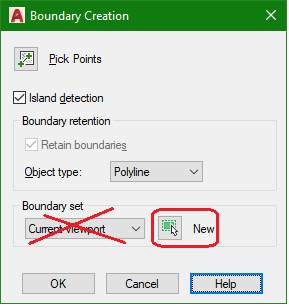
Just thought of another trick I've used in the past. I would let AutoCAD create a brand new outline of the area to be hatched for me with the Boundary command. But in the Boundary Creation window under Boundary set, do not use the default Current viewport setting. But instead click on the New button and then select only the objects that form the hatch area outline. This restricts AutoCAD to only consider those objects selected to generate the new boundary. Leave the Object type as Polyline and usually with this new Pline boundary generated, the Hatch creation completion success rate would increase just a tad more.
-
Is the LIST command enough to troubleshoot CAD geometry?
indiancad posted a topic in AutoCAD Drawing Management & Output
The LIST command is useful when I need to inspect an entity’s properties, such as its coordinates, length, radius, or object type. It can help when a drawing looks correct but I need to verify the actual geometry. However, one limitation is that LIST reports geometric data rather than explaining why an operation failed. For example, if a 3D Boolean operation fails, the LIST output alone may not reveal whether the problem is caused by intersecting geometry, invalid solids, or another modeling issue. When troubleshooting a difficult 3D modeling problem, how far do you rely on LIST before switching to other inspection methods? -
Why do hatches become difficult to manage in complex drawings?
indiancad replied to indiancad's topic in AutoCAD 2D Drafting, Object Properties & Interface
Good point. Using the object option can simplify things when the existing geometry already defines a usable boundary. -
Why do hatches become difficult to manage in complex drawings?
indiancad replied to indiancad's topic in AutoCAD 2D Drafting, Object Properties & Interface
That’s a smart workaround, especially when you’re up against a deadline! Using a polyline on a nonplotting layer seems much easier than trying to fix every tiny gap in the original boundary. -
Why do hatches become difficult to manage in complex drawings?
indiancad replied to indiancad's topic in AutoCAD 2D Drafting, Object Properties & Interface
Breaking a complicated area into smaller sections makes sense, especially when only part of the boundary is causing trouble. Mirroring a hatch across a symmetrical part is also a useful workaround I’ll keep in mind. -
Why do hatches become difficult to manage in complex drawings?
indiancad replied to indiancad's topic in AutoCAD 2D Drafting, Object Properties & Interface
Interesting point about different hatch patterns behaving differently with the same boundary. I hadn’t considered that moving the geometry or changing the pattern could sometimes help. It shows that the issue isn't always just the boundary itself. -
Using Arraypath function via scripting, duplicating lines are created in opposite direction of curve path
harshil replied to harshil's topic in AutoCAD LT
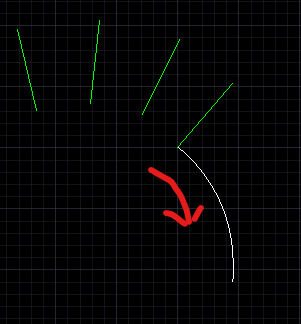
Green line should follow white curve path instead the duplicating lines are offsetting in opposite direction of curve
-
After launching VedaCAD and talking with several developers here, I noticed a universal architectural bottleneck we all face in the CAD industry: 99.9% of our custom plugins are strictly local and tightly coupled. Traditionally, if you build a tool that relies on specific external data—like a slide library (.SLB), a steel shape parameter table (.CSV), or a layer standard dictionary (.INI)—you hardcode that data into the .LSP or compile it directly into the .VLX. When a profile dimension changes or a new standard block is added, you have to modify the source code, recompile, and email a new ZIP file to everyone. This rigid "Logic + Data" coupling inevitably leads to a version fragmentation nightmare across an office. The obvious solution is to fetch data from a cloud API on the fly. But as we all know, writing WinHttp requests in AutoLISP is incredibly fragile. Because AutoLISP is single-threaded, waiting for a network response usually freezes the AutoCAD UI—a terrible user experience. The "Pseudo-Cloud" Architecture I realized that with VedaCAD acting as the underlying infrastructure, we can achieve true "Cloud-Native" behavior without writing any network code in LISP, simply by decoupling Logic from Data. Because VedaCAD handles the secure transmission and silent hot-swapping of physical files in the background, you can build tools like this: The Logic (Asset A): You publish your core .LSP plugin. The Data (Asset B): You publish your external data file (e.g., Shapes.csv, Blocks.slb, or Standards.ini). Instead of making risky network calls, your LISP simply reads the local data file from the isolated VedaCAD sandbox directory. To locate the data file dynamically, you can use these two lines of code (AutoCAD example): ;; Find the isolated VedaCAD Plugins and Assets sandbox paths dynamically (setq vc_plugins_path (strcat (getenv "APPDATA") "\\VedaCAD\\AutoCAD_R" (substr (getvar "ACADVER") 1 2) "\\Plugins\\")) (setq vc_assets_path (strcat (getenv "APPDATA") "\\VedaCAD\\AutoCAD_R" (substr (getvar "ACADVER") 1 2) "\\Assets\\")) How the Sync Loop Works (The Magic) Because AutoLISP releases the file handle as soon as you (close) the file, the data is never locked. When the data needs to change, the developer (requires a PRO account to unlock the push-update feature) simply updates the Shapes.csv or Blocks.slb file in their VedaCAD Client. Here is what happens on the users' end globally: For PRO Users: VedaCAD's background engine (24h heartbeat cycle) detects the version drift and silently hot-swaps the data file in the background. The next time the user runs your command, the LISP reads the new datasets instantly. For FREE Users: The engine (72h heartbeat cycle) receives the update beacon. It won't annoy them with popups, but an "Update" card will silently appear in their VedaCAD panel, allowing them to pull the latest data with one click. 5 Wild Possibilities with this Architecture: By relying on VedaCAD to handle the file delivery and background syncing, developers can breathe new life into traditional CAD formats: The "Live" Visual Block Library (.SLB / .DWG): You have a custom DCL with image tiles (slide_name) for inserting standard doors or mechanical parts. By separating the .SLB file, when the company introduces 5 new part models, the admin just pushes a new .SLB and .CSV index. Everyone's visual menu updates automatically the next time they open the dialog, without touching the core LISP. Dynamic Engineering Parameter Sets (.CSV / .XML): A structural plugin that draws H-beams or piping based on manufacturer catalogs. If the manufacturer updates their standard sizes, you just push a new .CSV. The plugin remains lightweight and eternally accurate. Auto-Updating Drafting Standards (.INI / .JSON): A "CAD Checker" routine that reads a dynamic .ini file mapping Layer Name -> Color -> Linetype. As the BIM Manager evolves the company standards, the ruleset updates silently across the fleet. The checker script always enforces the latest rules. Live Quoting / Pricing Engines: A cost-estimation LISP that reads a Prices.csv file to calculate the bill of materials (BOM). The CAD Manager updates the material costs quietly in the background each month. Remote Feature Toggles & Team Kanban: You publish a simple Config.ini. Change ENABLE_BETA=1 to unlock experimental features for your users, or add NOTICE="Server maintenance this weekend", which your LISP prints to the command line upon loading. You can even use a Tasks.txt that pops up a DCL dialog showing the team's drawing assignments for the day. We built VedaCAD to be an invisible infrastructure so that you guys can focus purely on solving engineering problems rather than fighting network protocols, UI freezes, and file locks. Has anyone else experimented with decoupling data from their LISP routines to mimic a cloud architecture? I’d love to hear your thoughts and see what else we could build with this!
-
Beyond APPLOAD: A local script manager for those of us with too many LISPs
VicoWang replied to VicoWang's topic in AutoLISP, Visual LISP & DCL
@BIGAL Appreciate the thought! I actually went down that exact rabbit hole during early R&D. We deliberately decided against dynamic CUI generation because messing with AutoCAD's menu tree on the fly is a notorious recipe for workspace corruption across different releases. We'd much rather keep VedaCAD strictly as an unbreakable, lightweight delivery pipe (like npm) and leave the bespoke UI craft in the hands of creators like you and Paul! --- @Steven P Definitely not! The VCID is strictly a one-time install code (like an Amazon tracking number). Once installed, you simply type your normal LISP command name in the command line as usual(or the custom shortcut keys you have configured)—zero VCID to memorize! -
 hahacooooolman joined the community
 - Yesterday
-
Beyond APPLOAD: A local script manager for those of us with too many LISPs
BIGAL replied to VicoWang's topic in AutoLISP, Visual LISP & DCL
@Steven P yes email a lsp and a ZIP file, with all the other stuff MNU CUIX lisp's dwg's dwt's etc. If using a server based solution then don't need a ZIP. One thing I did look at was making a custom CUI & CUIX file, they are xml files the later zipped and named CUIX. As mentioned before copy a CUIX rename to zip and have a look inside. Was looking at using Excel to write the menu then convert to XML code -> CUI, CUIX. For a custom mnu just need to work out how to write the XML code. Avoiding the CUI command. @VicoWang maybe have a look at making a CUI would be very helpful.