

 From: AutoCAD Productivity Articles #97
Originally published: January 2011
Viewport Plot Scale
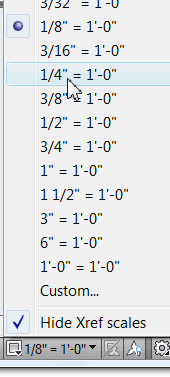
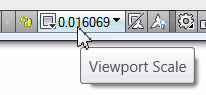 By default, when you switch over to a new layout tab, AutoCAD zooms to the drawing extents within the viewport.
To set the viewport scale, activate the viewport, then click Viewport Scale on the right half of the Status bar (the one that probably displays an odd decimal value) and select the desired plot scale from the list.
How to Edit the Plot Scale List
Open the Options dialog box (big red letter 'A'
 Options below the drawing name listing).
Click the User Preferences tab, then click Default Scale List (A2011) or Edit Scale List (all other versions) to open the dialog box listing the available plot scales.
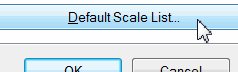
To delete unwanted/unused plot scales from the list, select the ones you want to get rid of (pick & drag, or use Ctrl or Shift to make your selection), then click the Delete button.
Note: In case you delete the wrong ones or want to start over, click Reset. The Reset feature is also useful if you have an inordinate number of plot scales as a result of Xrefs in the current drawing.
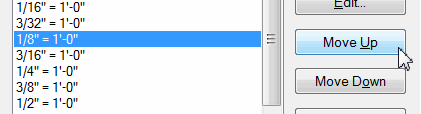
To position your most frequently used plot scales, select the desired scale, then click the Move Up or Move Down buttons.
When you're finished, click OK to close and save your changes, then click OK to close the Options dialog box.
Important: The scale list is saved by Drawing. Therefore, it would be best to configure the plot scales in your template and at least that way, whenever you use your template, your edited plot scale list is available.
See all the articles published in January 2011
See this article in the January 2011 Corner
Donate to CADTutor
If you found this article useful, you might like to consider making a donation. All content on this site is provided free of charge and we hope to keep it that way. However, running a site like CADTutor does cost money and you can help to improve the service and to guarantee its future by donating a small amount. We guess that you probably wouldn't miss $5.00 but it would make all the difference to us.
Note from Michael: I want to thank all of my customers for continuing to retain my training services (some for over three decades!) and let you know your donations do not go to me personally, but to the ongoing maintenance of the CADTutor ship as a whole and to support the yeoman efforts of my friend and CADTutor captain, David Watson, to whom I am grateful for this monthly opportunity to share a few AutoCAD insights.


