
 From: AutoCAD Productivity Articles #98
Originally published: February 2011
Hatch Selected Objects from the Hatch Tab
 When creating a hatch with AutoCAD 2011, the Quick Preview feature is pretty nice, especially if you want to hatch an area (see Michael's Corner, April 2010 for an overview on the A2011 Hatch command).
When you click the Hatch command, however, the default prompt is to pick an internal point. In this brief review, I want to steer you to the feature that enables you select an object for the hatch.
How to Hatch an Object
Set the desired layer to be current, then zoom to the object to be hatched.
Note: The object to be hatched must be entirely visible within the drawing area. If AutoCAD doesn't 'see' all of it, the preview feature won't work.
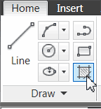
Click Hatch on the Draw panel (Home tab).
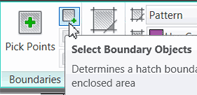 On the Boundaries panel, click Select Boundary Objects, and you are prompted to select the objects to hatch.
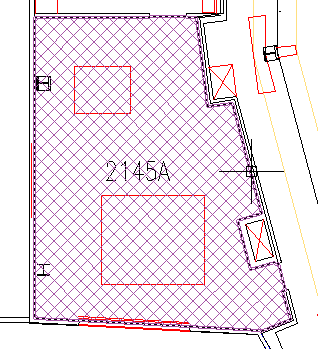
Immediately after selecting the object (or each object, if you have more than one to hatch), the current hatch pattern is applied in preview.
When you're finished selecting objects, press [Enter] to complete the command.
Insights
 Here are a couple other things that will enhance your use of the Hatch command.
Boundary command
The Boundary command - located on the expanded Draw panel of the Ribbon - (Michael's Corner, September 2005) enables you to pick a point within a closed area and have a polyline automatically created around the perimeter.
User-Defined hatch
You may want to review how to configure the hatch for a User Defined pattern as shown here (12″ spacing, 45 degree rotation, Double).
See all the articles published in February 2011
See this article in the February 2011 Corner
Donate to CADTutor
If you found this article useful, you might like to consider making a donation. All content on this site is provided free of charge and we hope to keep it that way. However, running a site like CADTutor does cost money and you can help to improve the service and to guarantee its future by donating a small amount. We guess that you probably wouldn't miss $5.00 but it would make all the difference to us.
Note from Michael: I want to thank all of my customers for continuing to retain my training services (some for over three decades!) and let you know your donations do not go to me personally, but to the ongoing maintenance of the CADTutor ship as a whole and to support the yeoman efforts of my friend and CADTutor captain, David Watson, to whom I am grateful for this monthly opportunity to share a few AutoCAD insights.


