
 From: AutoCAD Productivity Articles #102
Originally published: June 2011
A2012 Preview Feature for Fillets and Chamfers
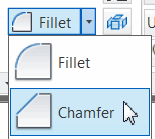 My coverage of edit commands has been, admittedly, sparse, but this new feature in AutoCAD 2012 caught my attention, and my suspicion is it will catch yours as well. Very simple, but very helpful.
I think the most useful circumstance would be in the application of unequal distances when using the Chamfer command.
In the following exercise, you will set unique values for Distance 1 and Distance 2, so consider the drawing size when doing so.
How to Preview a Chamfer Distance
Draw any rectangle, then launch the Chamfer command [Home tab
 Modify panelFillet flyout] and you get the following prompt; enter D for the Distance option…
Select first line or [Undo/Polyline/Distance/Angle/Trim/mEthod/Multiple]: D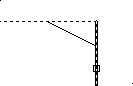
Enter a reasonable value (based on your rectangle size) for the first chamfer distance, then enter half that value for the second chamfer distance, similar to that shown here…
Specify first chamfer distance <12.0000>: 10Specify second chamfer distance <10.0000>: 5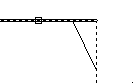
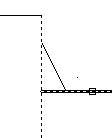
After specifying the distances, select one line of the rectangle, then hover over the adjacent leg of the rectangle to see the preview of the chamfer!
As you see in this example, the preview is very useful in alerting you to a possible reversal in the selection sequence in this circumstance.
See all the articles published in June 2011
See this article in the June 2011 Corner
Donate to CADTutor
If you found this article useful, you might like to consider making a donation. All content on this site is provided free of charge and we hope to keep it that way. However, running a site like CADTutor does cost money and you can help to improve the service and to guarantee its future by donating a small amount. We guess that you probably wouldn't miss $5.00 but it would make all the difference to us.
Note from Michael: I want to thank all of my customers for continuing to retain my training services (some for over three decades!) and let you know your donations do not go to me personally, but to the ongoing maintenance of the CADTutor ship as a whole and to support the yeoman efforts of my friend and CADTutor captain, David Watson, to whom I am grateful for this monthly opportunity to share a few AutoCAD insights.


