

 From: AutoCAD Productivity Articles #105
Originally published: September 2011
BCOUNT [Block Count]
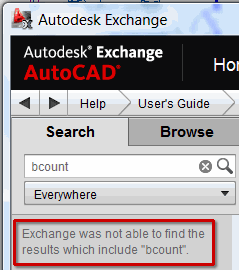 This buried treasure has come up too many times in training recently, so now I feel compelled to refresh your memory. The quickest way to count the blocks in a drawing or within a selection area, is the command BCOUNT.
You can't find it anywhere on a menu, button, Ribbon, etc., you just have to know it's there. Kind of like knowing how to order from the Not-So-Secret menu at IN-N-OUT Burger.
How to Use Bcount
Type BCOUNT, and you see the following prompt:
Press Enter to select all or...Select objects: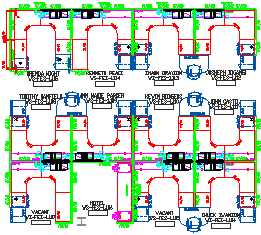
Create a selection window around the area where you want to count the blocks, otherwise, for a tally of all the blocks in a drawing, press [Enter]. In this example, I placed a window around the furniture in a particular department.
Hit the F2 key to flip to the AutoCAD Text Window and see the resulting list of blocks. You may have to scroll up to get to the top.
Bonus points: To get the count into the drawing, highlight the desired content, then right-click
 Copy.
Copy.Go back to the drawing, then hit Ctrl + V and click in the drawing to paste the selected content as Mtext. Standard Mtext editing procedures now apply.
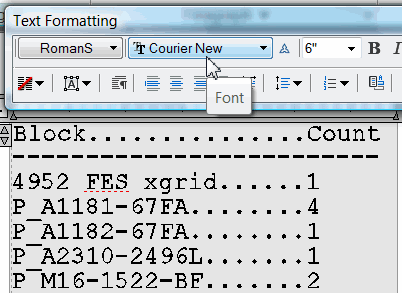
Hint: There's a good possibility the Count column won't ‘line up’ the numbers. In the Mtext editor, select all the text (Ctrl + A), then change the font to Courier New… and they line up quite nicely.
See all the articles published in September 2011
See this article in the September 2011 Corner
Donate to CADTutor
If you found this article useful, you might like to consider making a donation. All content on this site is provided free of charge and we hope to keep it that way. However, running a site like CADTutor does cost money and you can help to improve the service and to guarantee its future by donating a small amount. We guess that you probably wouldn't miss $5.00 but it would make all the difference to us.
Note from Michael: I want to thank all of my customers for continuing to retain my training services (some for over three decades!) and let you know your donations do not go to me personally, but to the ongoing maintenance of the CADTutor ship as a whole and to support the yeoman efforts of my friend and CADTutor captain, David Watson, to whom I am grateful for this monthly opportunity to share a few AutoCAD insights.


