

 From: AutoCAD Productivity Articles #103
Originally published: July 2011
Stacking Fractions in Mtext
Depending upon the need — or your eyesight — automatic stacked fractions can be unexpected and/or unwanted. My buddy Serge, Design Manager at American Office, was asking me about this recently so I thought I'd take this up this month.
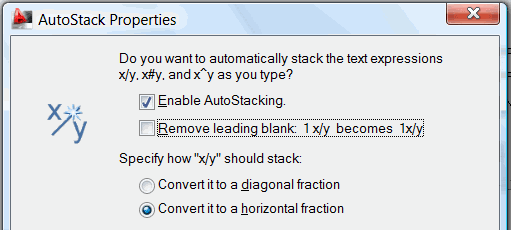
How to Specify and Adjust Stacked Fractions
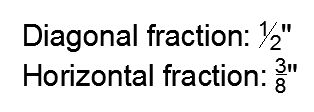 Launch Mtext, then enter the first line of text shown here and you will probably get the AutoStack Properties dialog box shown, above.
In the lower portion of the dialog box, notice the two options of stacking — Diagonal fraction or Horizontal fraction.
Click the radio button for the desired stack condition, then click OK to close the AutoStack Properties dialog box and your fraction will reflect your decision.
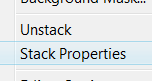 To disable the stacking of fractions in Mtext — possibly because it is too difficult to discern — highlight the fraction (be careful not to include the inches or feet sign, if they're present), then right-click to display the shortcut menu.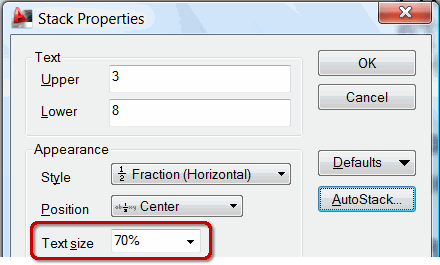
The option to Unstack is pretty intuitive, but what about Stack Properties? In addition to changing the value of the Upper and Lower text values, you can also specify the Style, Position, and possibly more importantly, the percentage of the height of the fraction numerals in relation to the text itself (Text Size).
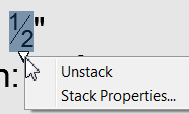 AutoCAD 2012 Note: I noticed that in A2012, when you're in the Mtext Editor, after highlighting the fraction to edit, if you click on the highlight, a small white down-arrow displays. Click on that arrow (not right-click), then choose the desired option. Nice.
See all the articles published in July 2011
See this article in the July 2011 Corner
Donate to CADTutor
If you found this article useful, you might like to consider making a donation. All content on this site is provided free of charge and we hope to keep it that way. However, running a site like CADTutor does cost money and you can help to improve the service and to guarantee its future by donating a small amount. We guess that you probably wouldn't miss $5.00 but it would make all the difference to us.
Note from Michael: I want to thank all of my customers for continuing to retain my training services (some for over three decades!) and let you know your donations do not go to me personally, but to the ongoing maintenance of the CADTutor ship as a whole and to support the yeoman efforts of my friend and CADTutor captain, David Watson, to whom I am grateful for this monthly opportunity to share a few AutoCAD insights.


